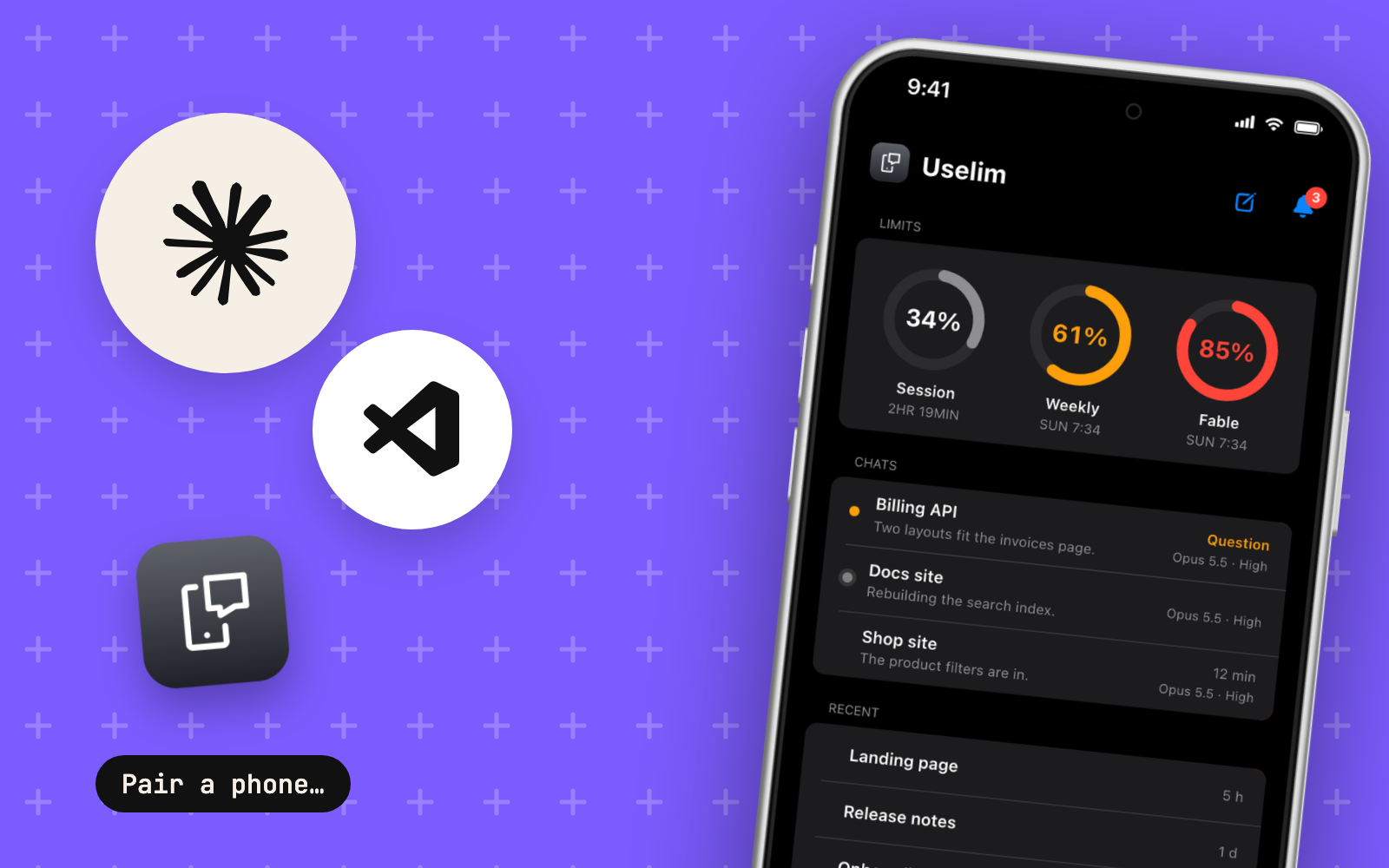
Uselim: Claude Code's limits in the menu bar, your chats on your iPhone
Uselim is an independently developed macOS menu bar utility for Claude Code users, separate from Anthropic's own products: a Claude Code usage monitor and remote conversation access in one. It shows Claude's usage limits where the clock sits, says which chat waits on an answer, and, with the phone side on, carries every Claude Code chat open in VS Code to an iPhone: read it, answer it, steer it. The limits, chats and permissions stay Claude Code's own, set by the Claude subscription: Uselim shows the usage figures available to it and relays the chats, and Culpmit, a separate app, can carry the figures to its Touch Bar strip. This guide covers the install, the menu bar, pairing a phone and every screen of the phone app.
How Uselim works
- The figures. The same usage figures Claude's usage panel shows: the session limit over five hours and the weekly ones, each with its share and its reset. Claude Code's status line hands them over after every reply while chats work, and a light read at most every five minutes covers quiet hours. When Anthropic asks for a pause in readings, Uselim waits it out, and once the figures grow old the menu says until when. The readings are the latest Uselim has retrieved, so they can trail Claude's own panel, and they go missing while a sign-in stands in the way.
- Waiting chats. Claude Code's hooks tell Uselim when a chat stops for a question or a permission. The chat shows at the top of the menu, and the bar gets an orange dot.
- The phone. Uselim runs a small relay on the Mac. Tailscale, a private network between your own devices, carries the iPhone to it over HTTPS. A Claude Code plugin inside each chat takes the phone's messages in as typed prompts and hands Uselim the replies and questions; Claude Code's hooks carry each permission ask to the phone. The phone side covers Claude Code chats open in VS Code's Claude Code extension, and reaches them while the Mac is awake with Uselim running and both devices are online on the tailnet.
- Pairing. The phone pairs once with six digits from the Mac, valid for ten minutes, and trades them for a key of its own, which the Mac keeps as a hash beside the phone's name. Every request carries its key, so the chats answer paired phones; Pair a phone… lists them, each with Remove. Episode 2 explains the relay and its checks.
Install Uselim
Through Culpmit
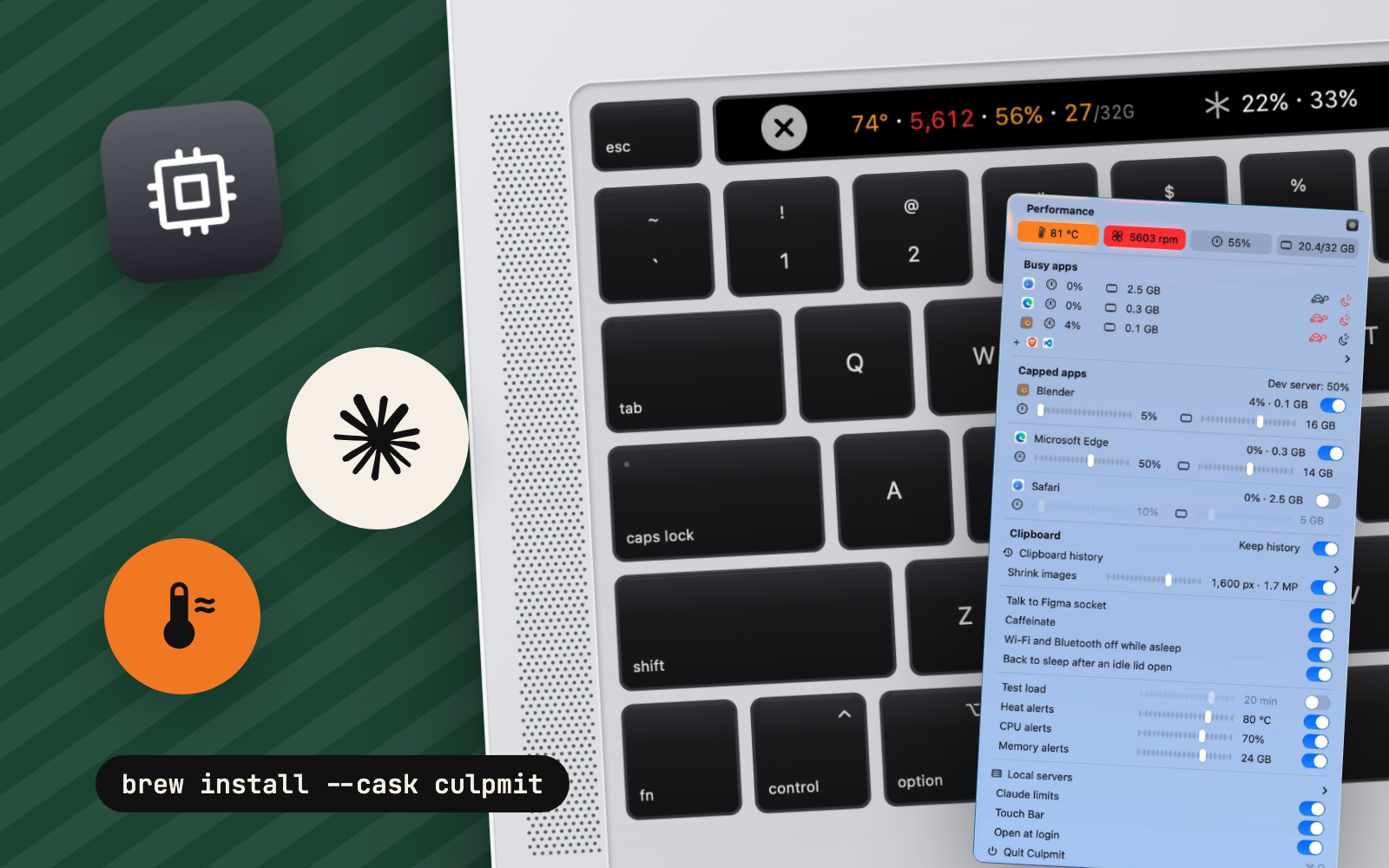
In Culpmit's menu, turn on the Claude limits switch. A line beneath it names each step while Culpmit downloads Uselim, checks its signature, puts it in Applications and sets it up in the background. Once Uselim has run an hour, the row is the switch alone. How to use Culpmit covers that app.
By hand
Download the zip from the Releases page, move Uselim to Applications, then run its setup once in Terminal:
/Applications/Uselim.app/Contents/MacOS/Uselim --setupWhat the setup changes
- Claude Code's settings: six hooks, and a status line on a Mac that has yet to set one. The file is backed up first.
- A Claude Code plugin named uselim, installed from the copy inside the app.
- Open at login.
- A read of your Claude Code sign-in in the keychain, to fetch the same usage figures Claude's usage panel shows.
Chats already open take the plugin at their next start; /reload-plugins in a chat's prompt box brings it in at once.
What Uselim asks for, and why
Each ask comes once: what it serves, and what carries on when you decline it.
On the Mac
- Notifications, with Uselim's first notice. They carry a limit crossing 60, 80 and 100%, the reset of a limit that warned, and a chat stopping to ask you something. Declined, the menu still shows every limit and every waiting chat, and offers Turn on notifications…, which opens the setting to allow them.
- Open at login, a note from macOS that a login item was added. Uselim starts with the Mac, so the readout is on the bar from the start. To start Uselim yourself instead, turn Open at login off in its menu.
- VS Code's question before a link opens a chat, the first time. Uselim opens chats through such a link for the phone's New chat, for a message to a closed chat, and to bring forward a chat whose phone message waits to go in. Tick the box to skip the question from then on. Declined, a message to a closed chat waits until you open that chat, and New chat keeps your first message on the phone.
- The hooks and the plugin, should Claude Code ask about them at the next chat start. The hooks tell Uselim which chat waits on you and carry permission asks to the phone; the plugin carries the phone's messages into each chat, and its replies and questions back. The limits in the menu bar work either way.
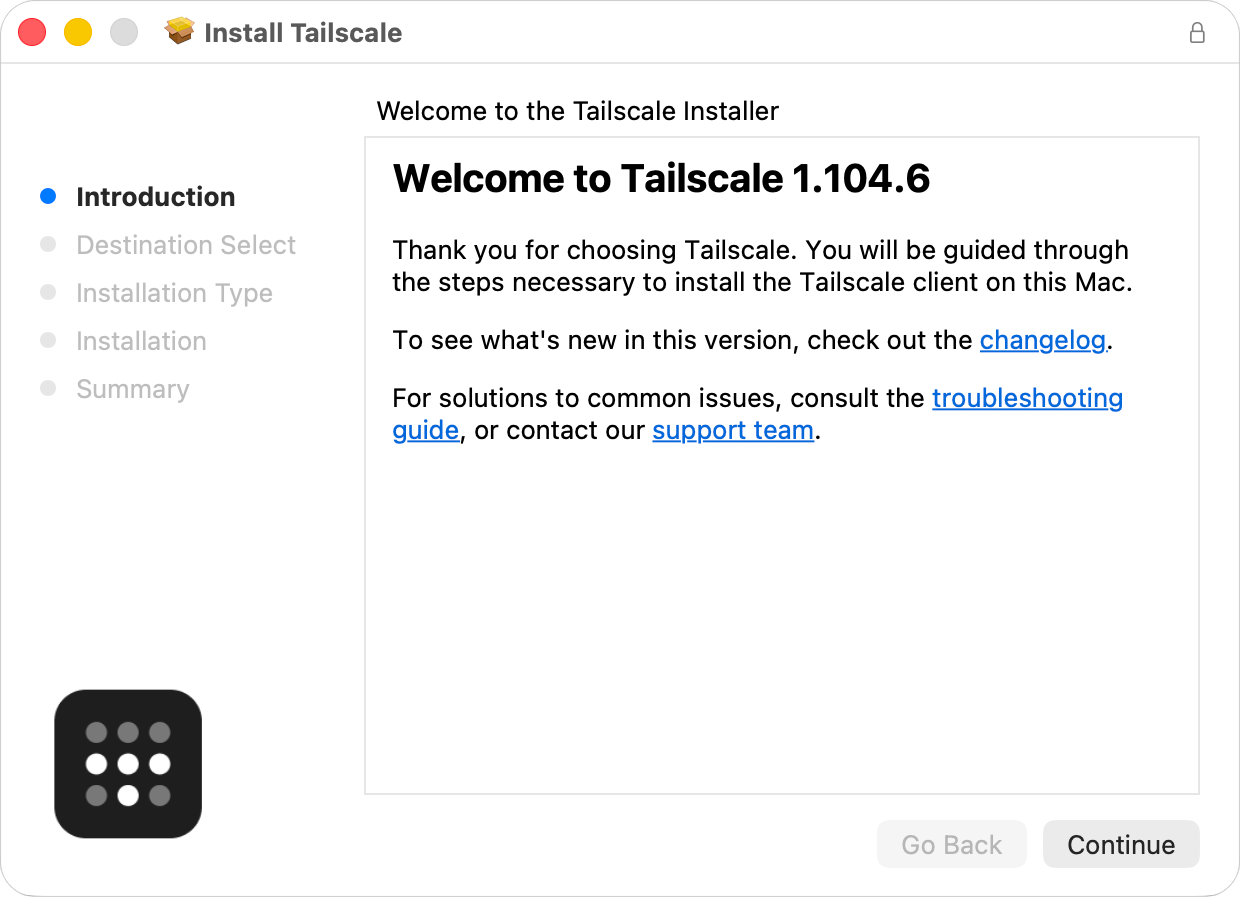
- Tailscale, with Phone on: its installer asks for your admin password, macOS for approval of Tailscale's VPN configuration, and Tailscale for a sign-in. Tailscale carries the iPhone to the Mac over your own tailnet. Declined, the phone side waits, and the limits and the menu bar work as before.
- Claude's usage figures arrive with zero prompts.
On the iPhone
- Tailscale's VPN configuration, when you first turn Tailscale on. The phone reaches the Mac's relay through it alone.
- The camera, once, for the scan icon on the pairing screen, to read the QR code in the Mac's Pair a phone… window. Declined, the six digits typed in pair the phone the same way.
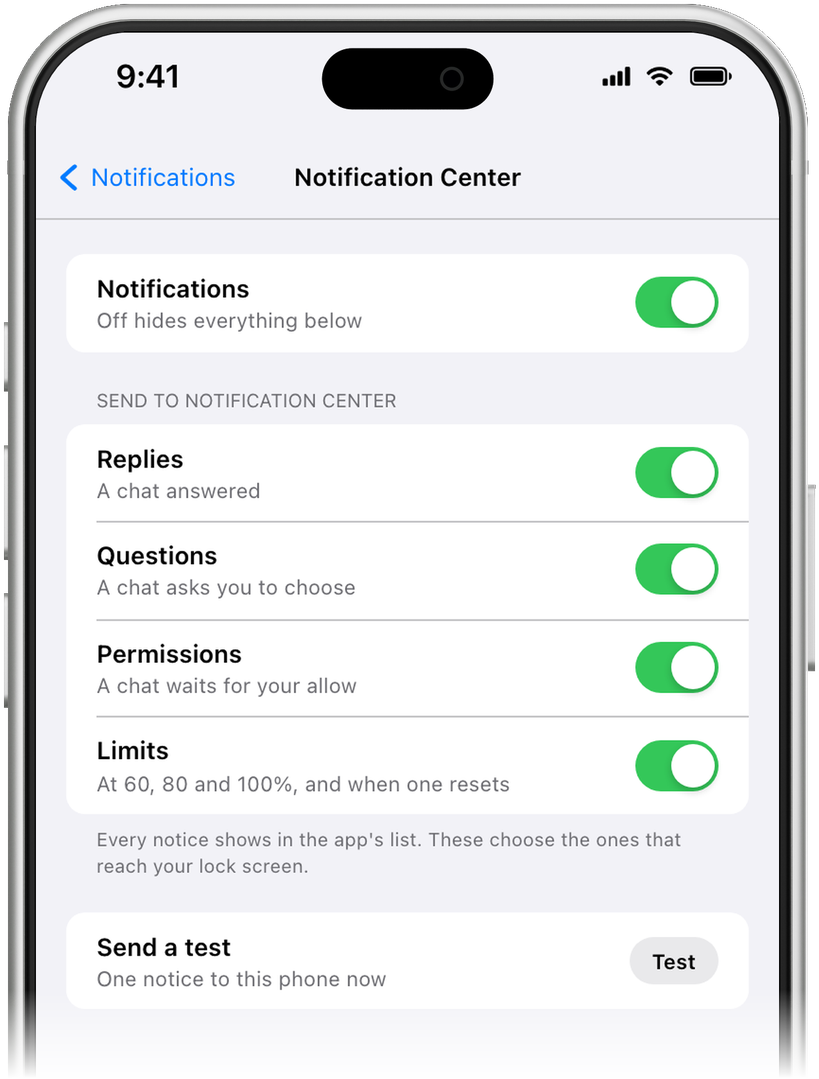
- Notifications, when you turn them on in the app's Notification Center screen. Replies, questions, permissions and limits arrive as notices, each kind with its own switch. Declined, every notice still lists under the bell, with a dot until you open it.
Read your Claude Code limits in the menu bar
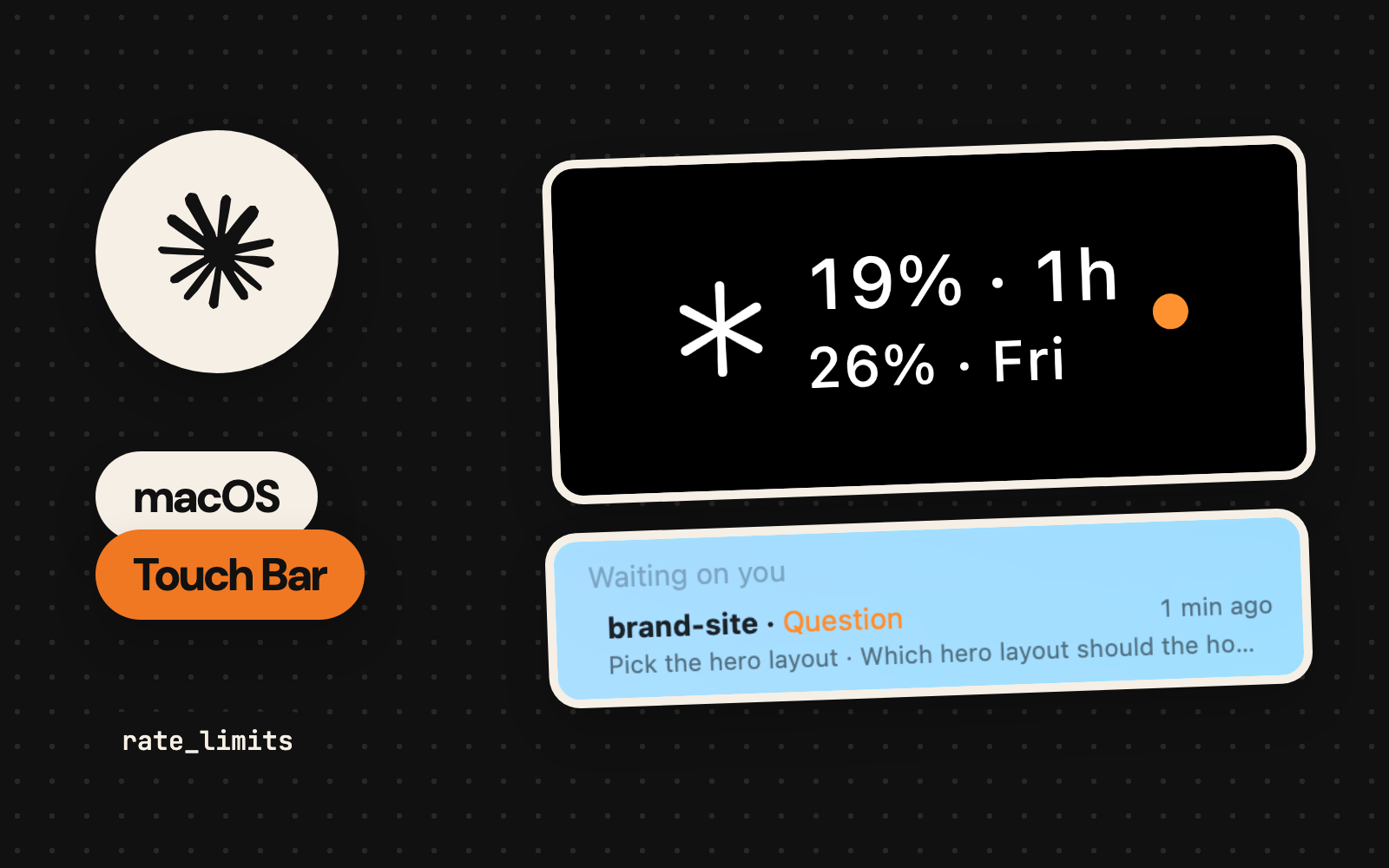
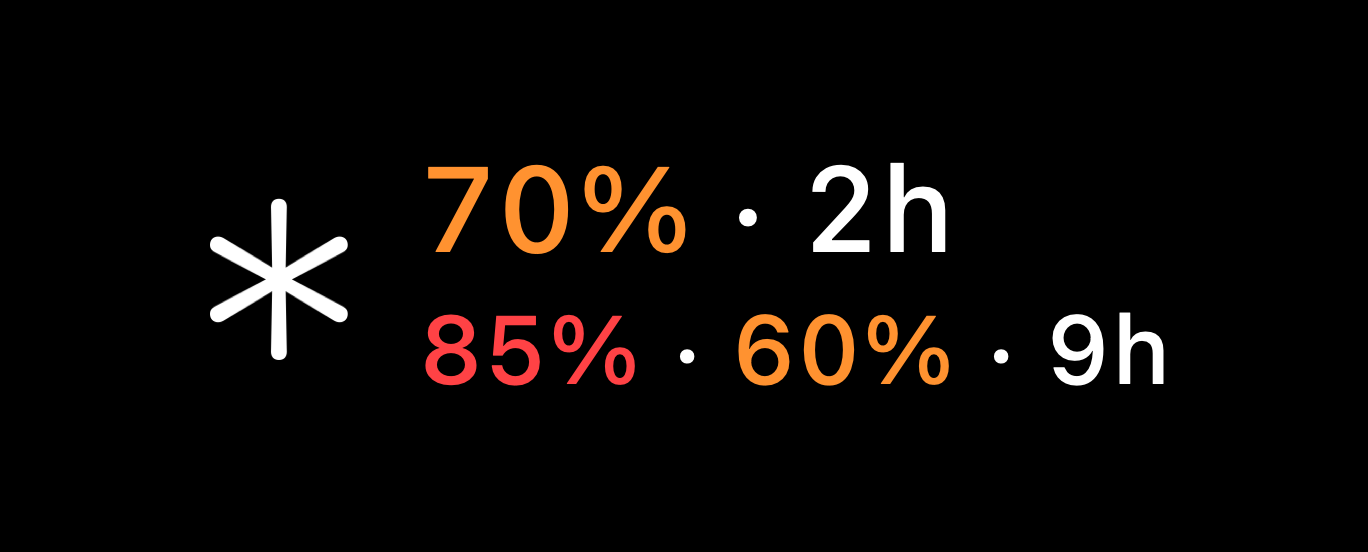
Two lines sit on the bar: the session above, the week below, each with its share and the time to its reset, in whole units; past a day, the reset's weekday. Figures turn orange from 60% and red from 80%, and grey once they are ten minutes old. An orange dot after the figures says a chat waits on you. Episode 1 shows how the readout and the Touch Bar figures are built.

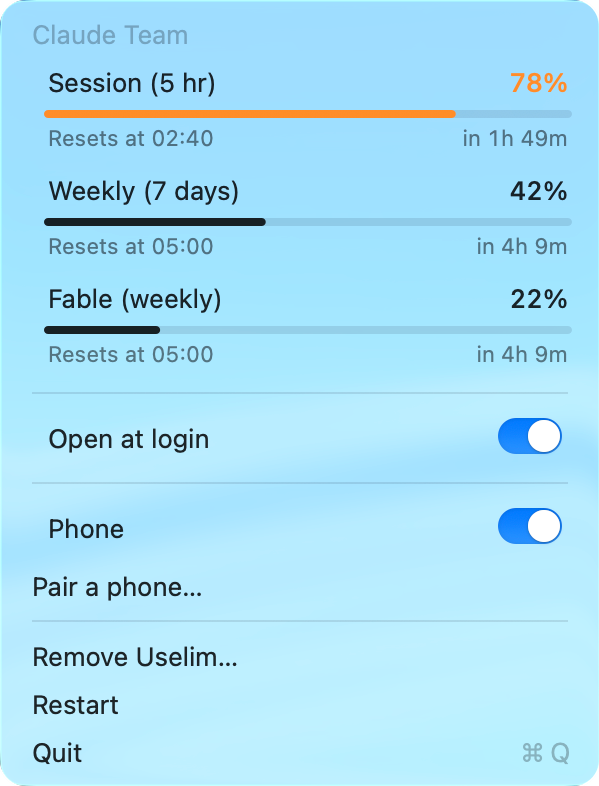
The menu
- Waiting on you: each chat stopped for an answer, with its project, what it waits for and for how long. A click opens the chat in VS Code.
- Your plan, for example Claude Team, and a grey note line while the figures are old or missing or a sign-in stands in the way, with a reload icon at its right end that reads at once.
- Each limit as a row with its bar, its reset in your clock's style and the exact time left.
- Open at login and Touch Bar, then Turn on notifications… while macOS holds the notices back.
- Phone, with its line and Pair a phone… beneath it.
- Update to … while a newer release waits, then Remove Uselim…, Restart and Quit.

A notice arrives as a limit crosses 60, 80 and 100%, once more when a limit that warned resets, and when a chat stops to ask you something.

On the Touch Bar
On a Mac with a Touch Bar, the menu's Touch Bar switch puts the figures on the Control Strip. While Culpmit runs, Uselim's Touch Bar row steps aside and Culpmit's chip holds the strip's one slot, carrying Claude's figures while Culpmit's Claude limits switch is on.
Set up the phone
- On the iPhone, install Tailscale from the App Store and sign in. The free Personal plan covers it.
- In Uselim's menu, turn Phone on. A line beneath the switch takes the Mac through Tailscale, one click on the line at a time. On a Mac that has yet to get Tailscale, Uselim downloads Tailscale's own installer and checks its signature first; give macOS your admin password and approve Tailscale's VPN configuration. The line then opens Tailscale, asks you to sign in with the account the iPhone uses and turn Tailscale on, and starts the relay. Where your tailnet's HTTPS certificates are off, it opens Tailscale's page to turn them on. The line goes once the relay is ready.
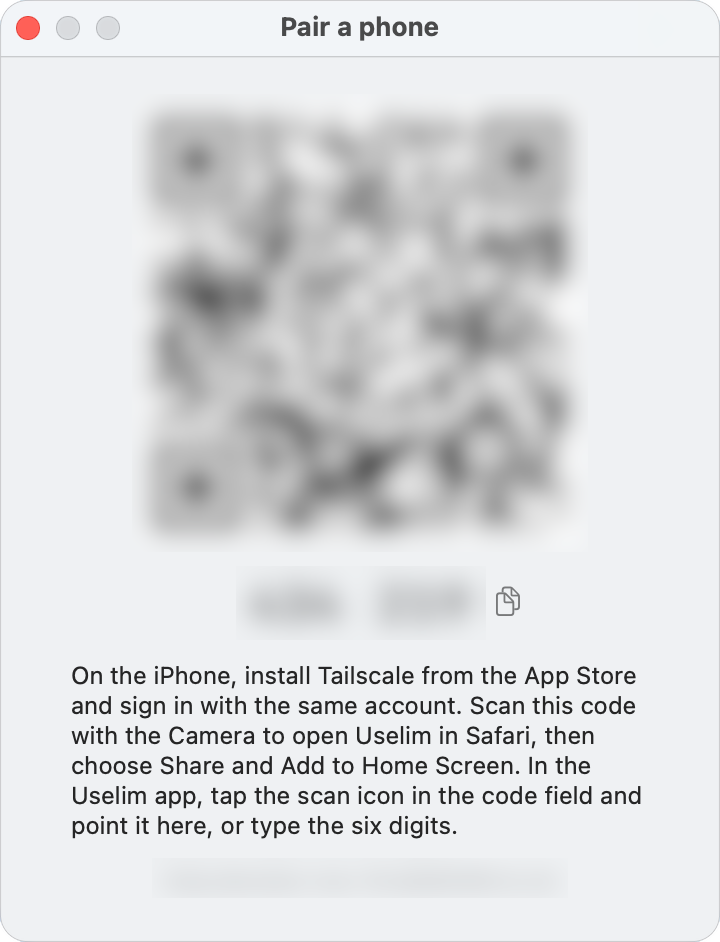
- Choose Pair a phone…: a QR code, and the six-digit code in two groups of three with a copy icon beside it. With Universal Clipboard, the copied code pastes on the iPhone. The digits pair one phone within ten minutes, and fresh ones follow while the window stays open.
- On the iPhone, scan the QR code with the Camera, open the page in Safari, tap Share, then Add to Home Screen.
- Open Uselim from the Home Screen. On its pairing screen, tap the scan icon at the right end of the code field and point it at Pair a phone… on the Mac, or type the six digits. iOS asks for the camera once.
- Turn notifications on in its Notification Center screen, the gear on the bell's screen.
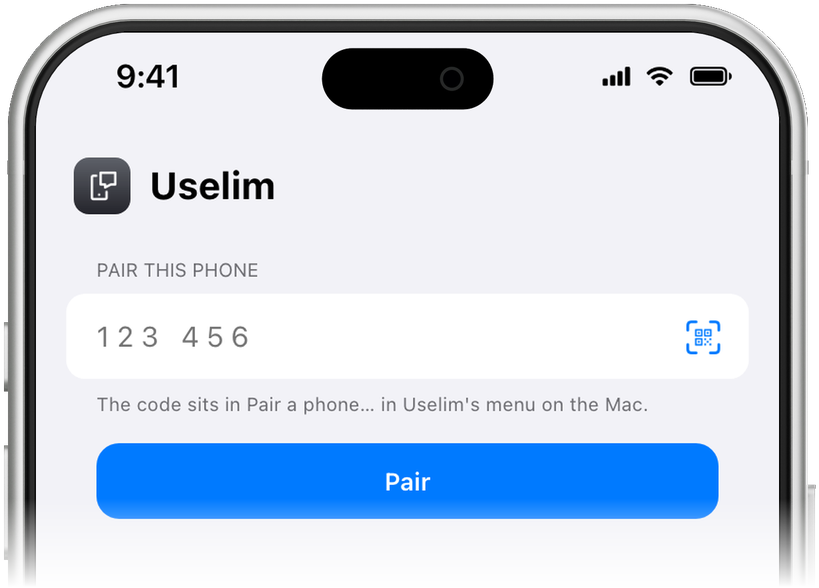
Safari and the Home Screen app each pair on their own, so pair the app from inside it. The limits and the menu bar work with zero Tailscale; it serves the phone alone.
Use Uselim on your iPhone
Home
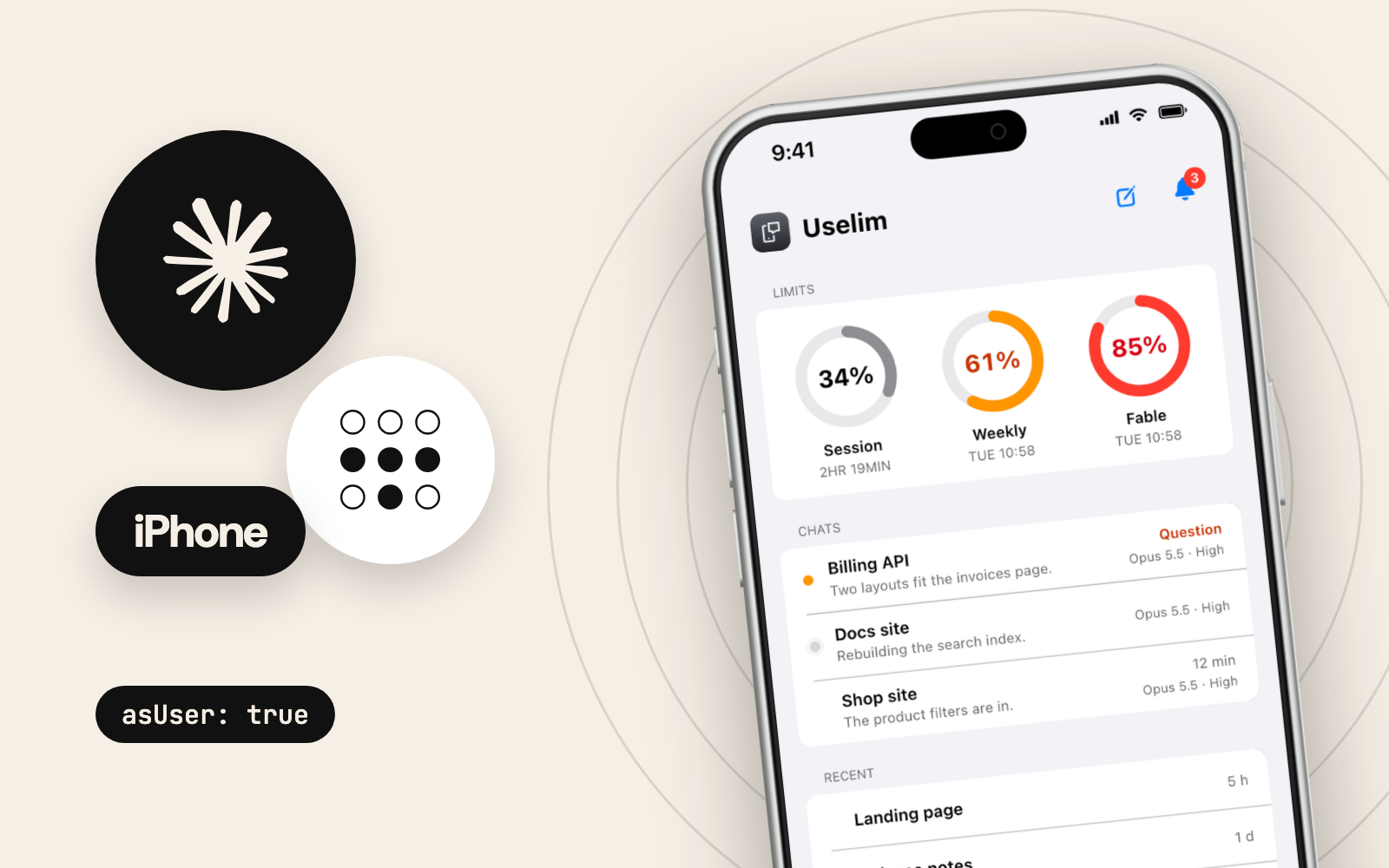
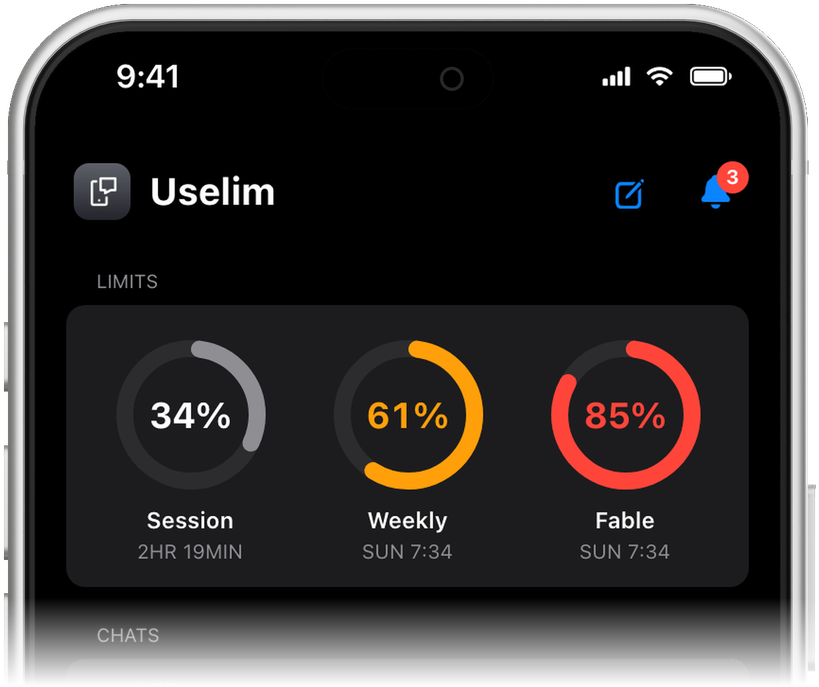
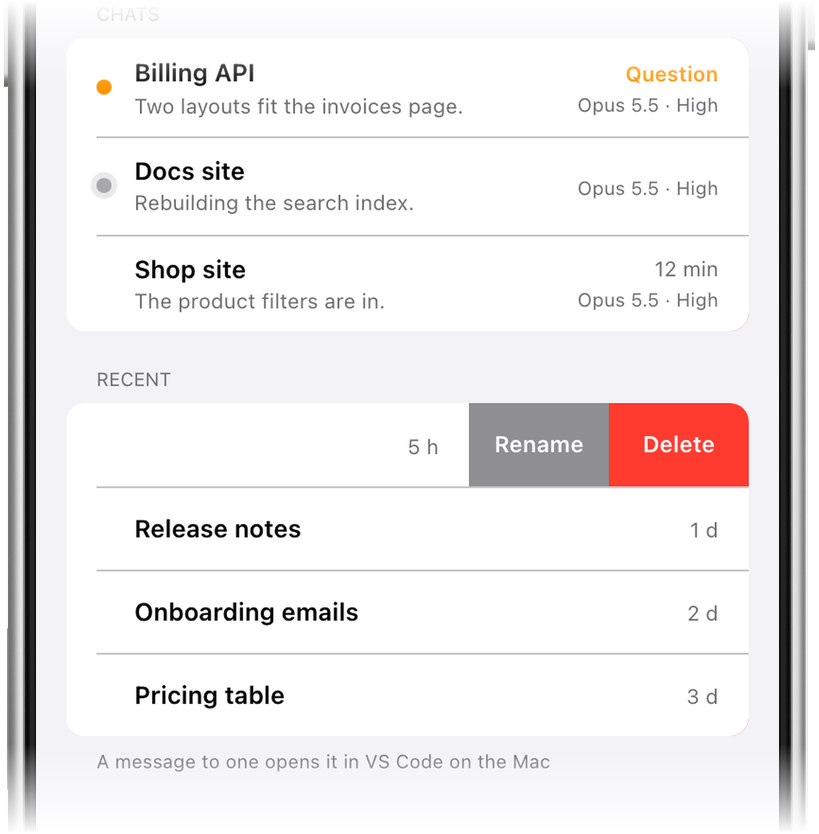
The app's icon and name, a pen for a new chat, and a bell with the unread count. Below them, the limits as rings, grey, orange from 60% and red from 80%, with the time to each reset; then the chats open in VS Code, each with its latest reply, its time, and the model and effort it runs on. Recent lists the chats of the last two weeks that are closed.
Read a chat
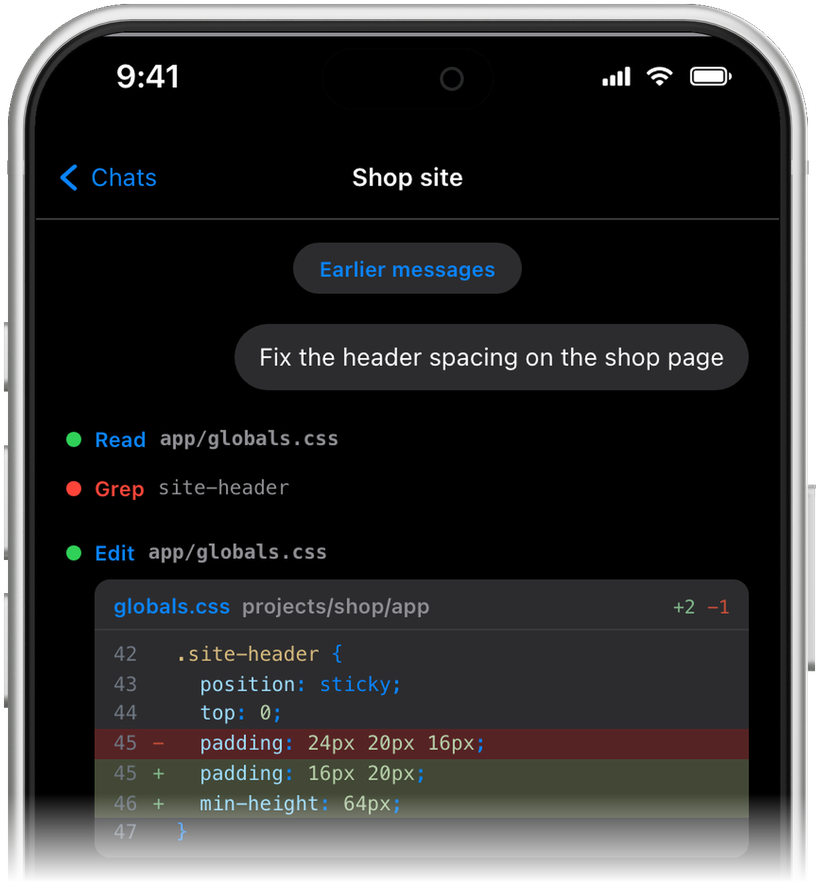
The conversation reads as VS Code shows it: replies in markdown, and every tool call as a row that opens. Episode 4 covers how the history reaches the phone.
- An edit opens as a diff, red and green rows on the file's own line numbers.
- A file read shows its line numbers, with the code coloured by language.
- A command shows with its output.
- Code blocks carry their language and a copy button, and pictures pinch to zoom.
Write, send files and photos, and stop a turn
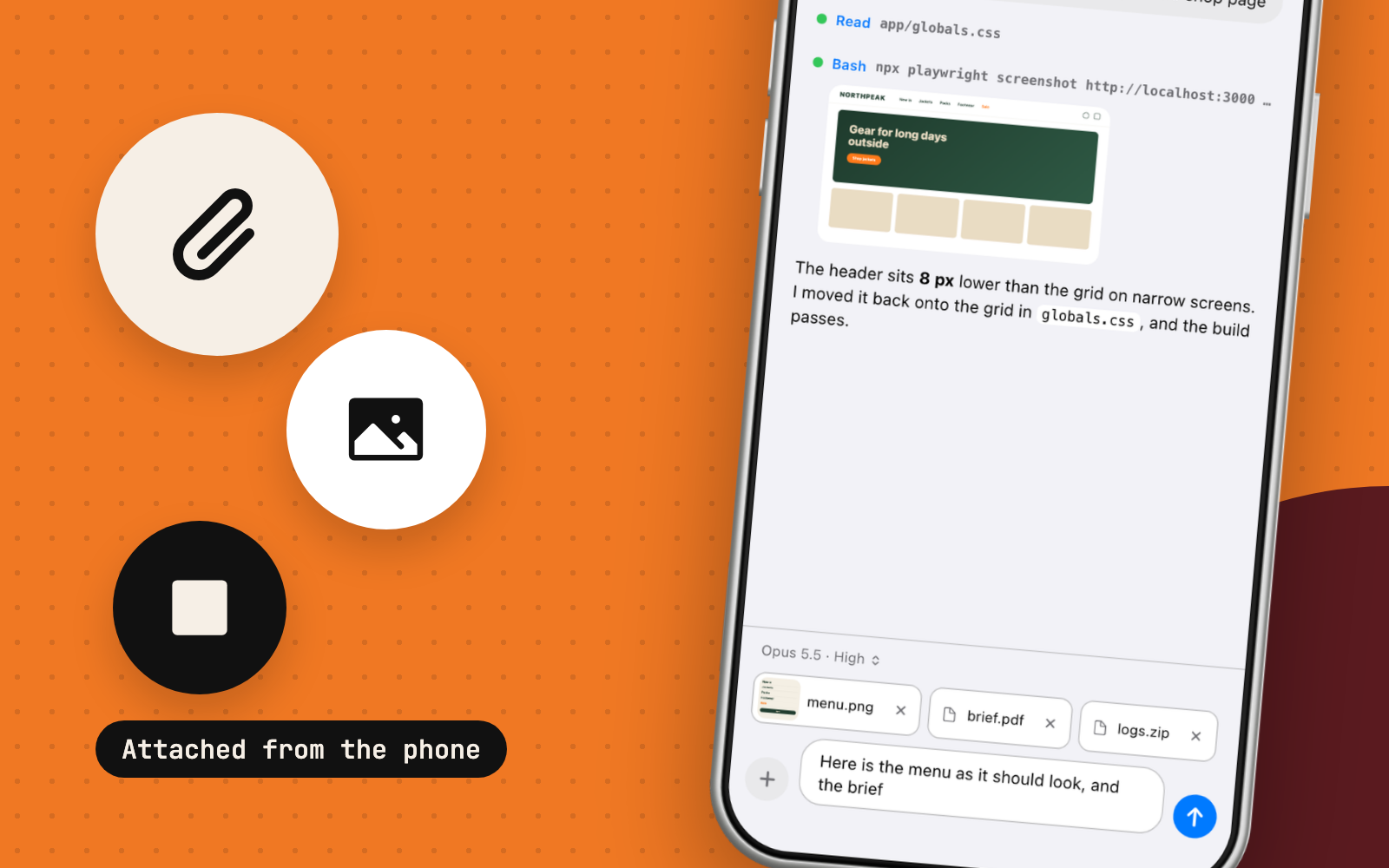
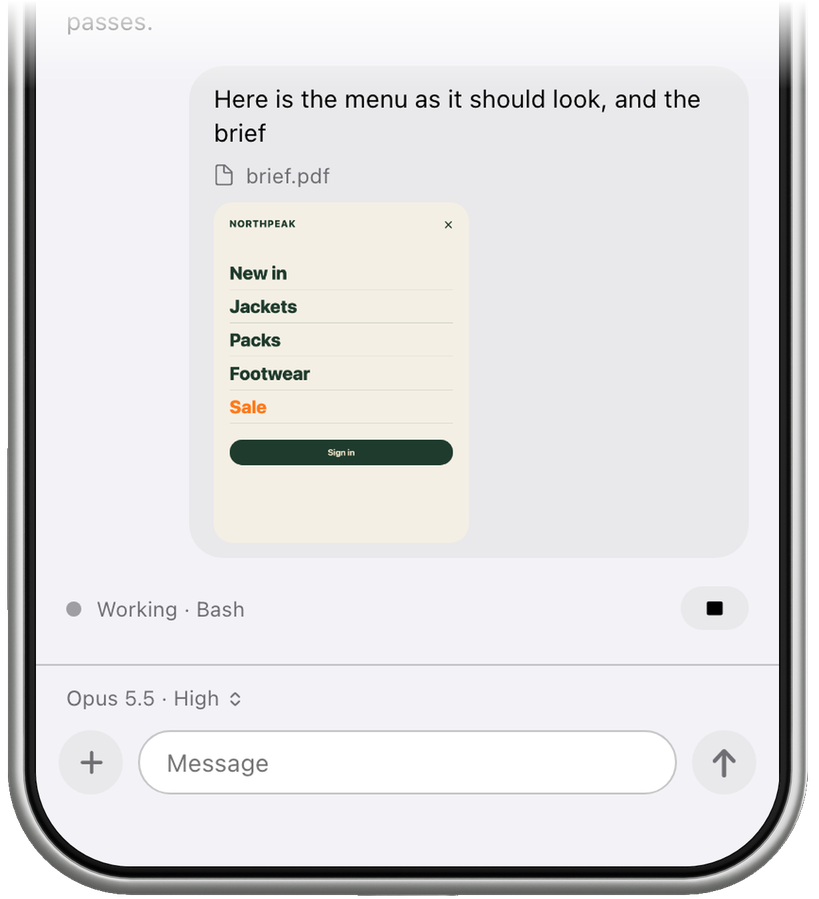
Send messages, photos and any file a chat takes. A message to a closed chat opens it on the Mac, and a message sent while a turn runs waits its turn. Stop ends the running turn. Each file can be up to 200 MiB, and photos fit within 1,500 px on the long side and 1.5 MP; Episode 3 covers the details.
Answer questions and permissions
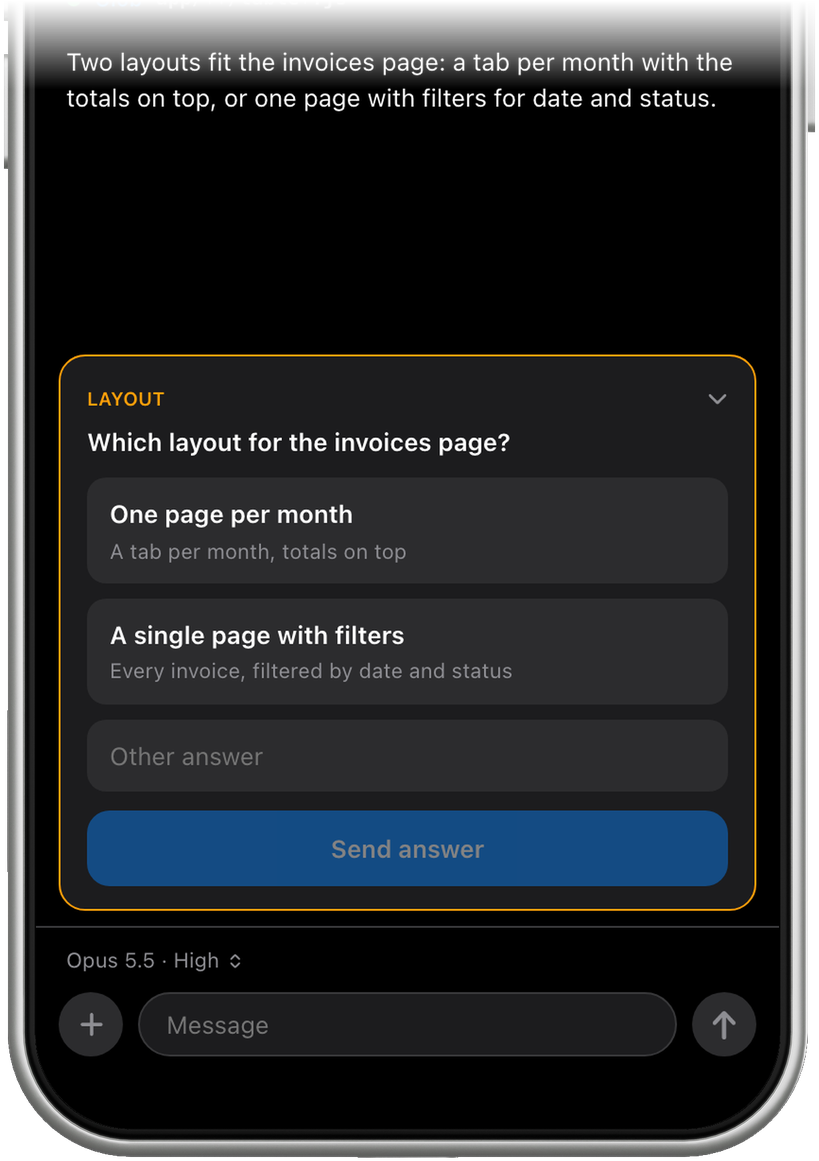
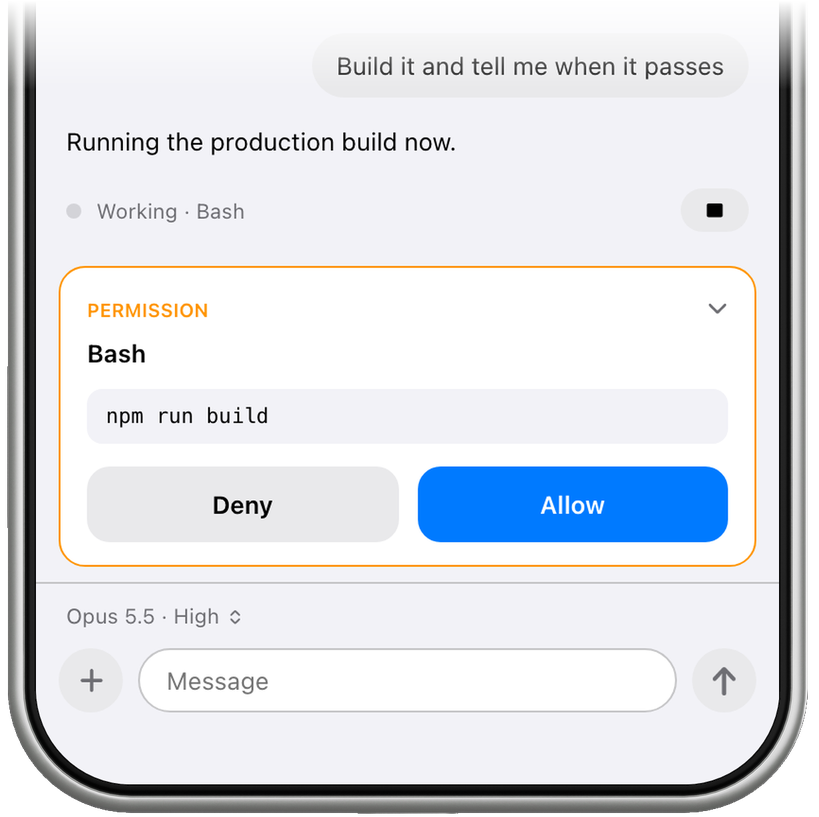
A question or a permission arrives as a card above the message box. Answer it on the phone or at the Mac; the first answer stands. The card folds to one line, so you can read the chat above before answering. Allow on the phone grants that one request, as Allow at the Mac would, and Uselim passes on exactly the answer given; Episode 7 covers the race between the two sides.
Switch the model and the effort
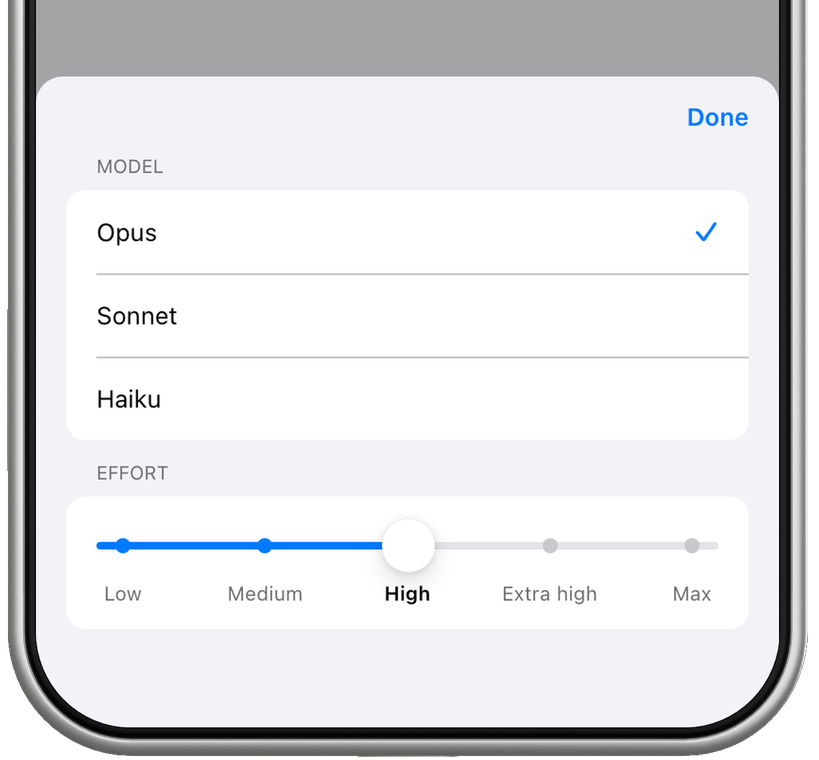
The pill above the message box, for example Opus 5.5 · High, opens a sheet: Opus, Sonnet or Haiku, and the effort on a slider from Low to Max. The change holds for that chat alone, and your defaults stay as they are.
Rename and delete
Swipe a chat left, the way Mail does. Delete hides the chat from the phone, as VS Code's Archive does, with its history kept; an open chat returns with its next reply or question. A new name shows in VS Code's tab too. Episode 5 covers reopening closed chats from the phone.
Run slash commands
A message naming one of the chat's commands runs it, with the command's output beneath. /reload-plugins stays with the Mac.
Start a new chat
The pen opens a fresh chat in VS Code on the Mac and sends your first message there.
Notifications
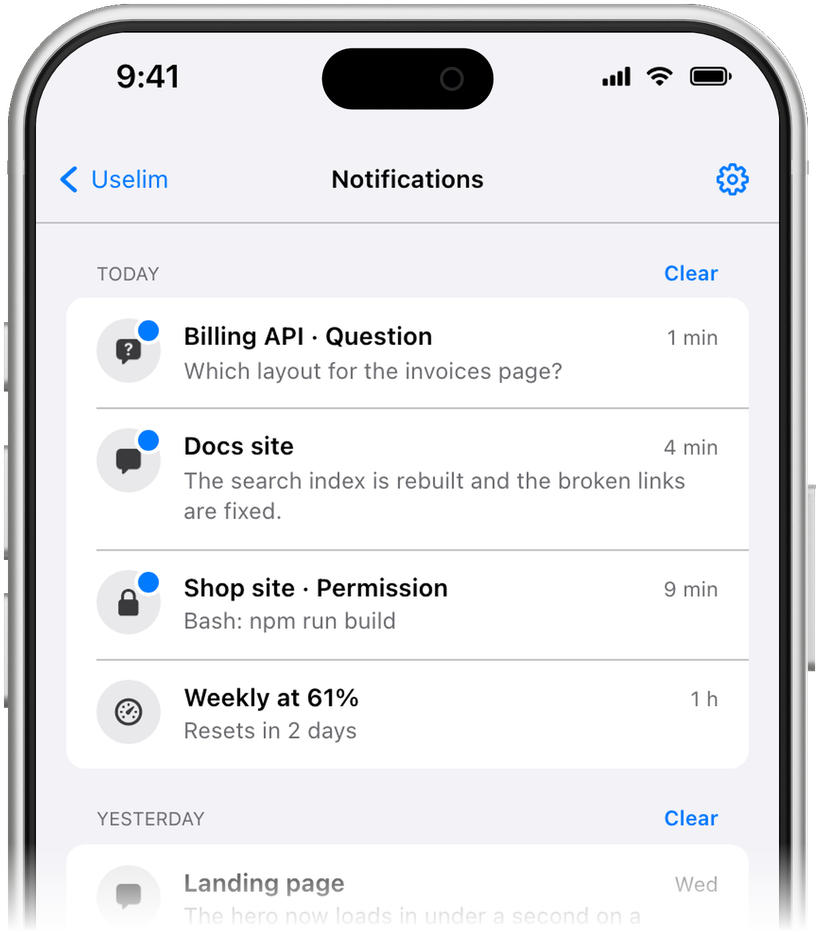
Replies, questions, permissions and limits each have their own switch. Every notice lists under the bell, grouped by day, with a dot until you open it. Delivery depends on the phone's notification permission, its connection and iOS's web push for Home Screen apps, from iOS 16.4; Episode 6 follows a notice end to end.
Privacy
- The relay runs on your Mac and reaches your phone through your own tailnet over HTTPS.
- Paired phones reach the chats: every request carries the phone's own key, requests through Tailscale must come from the Mac's own tailnet login, and a device that sends five wrong keys waits a minute before its next try, doubling up to an hour. These checks narrow who can reach the chats; the tailnet's own access settings and a locked phone keep their part in it.
- The relay's files, files and photos from the phone included, stay on the Mac in
~/Library/Application Support/Uselim/relay/. Chat content travels to the phone over the tailnet, notices go through Apple's push service encrypted for the phone, and Claude Code's own requests go to Anthropic as before. - Keep Tailscale Funnel off for the relay, so it stays private to your devices.
Troubleshooting
- Figures in grey: they are over ten minutes old, or the sign-in is out. The reload icon on the menu's note line reads at once.
- A chat missing from the phone: run
/reload-pluginsin that chat, or start it again. - A message waiting on a chat in a background tab: Uselim brings the chat's tab forward in VS Code so the message runs.
- The old Home Screen icon after an update: iOS keeps the icon from the day the app was added; remove the app from the Home Screen and add it again.
- Notices missing on the Mac: choose Turn on notifications… in Uselim's menu.
Remove Uselim
Choose Remove Uselim… in its menu, or run the line below. The hooks and the status line leave Claude Code's settings, with a backup kept; the plugin and Open at login go, and the app moves to the Trash. Turning off Culpmit's Claude limits switch takes the figures off Culpmit's strip and keeps Uselim installed.
/Applications/Uselim.app/Contents/MacOS/Uselim --removeThe source and the releases live on GitHub. For the Mac's heat, busy apps and the Touch Bar strip that carries these limits, read How to use Culpmit.
- Published
- Author
- Simon Booban
- Category
- AI & Automation