Claude Code usage limits at a glance
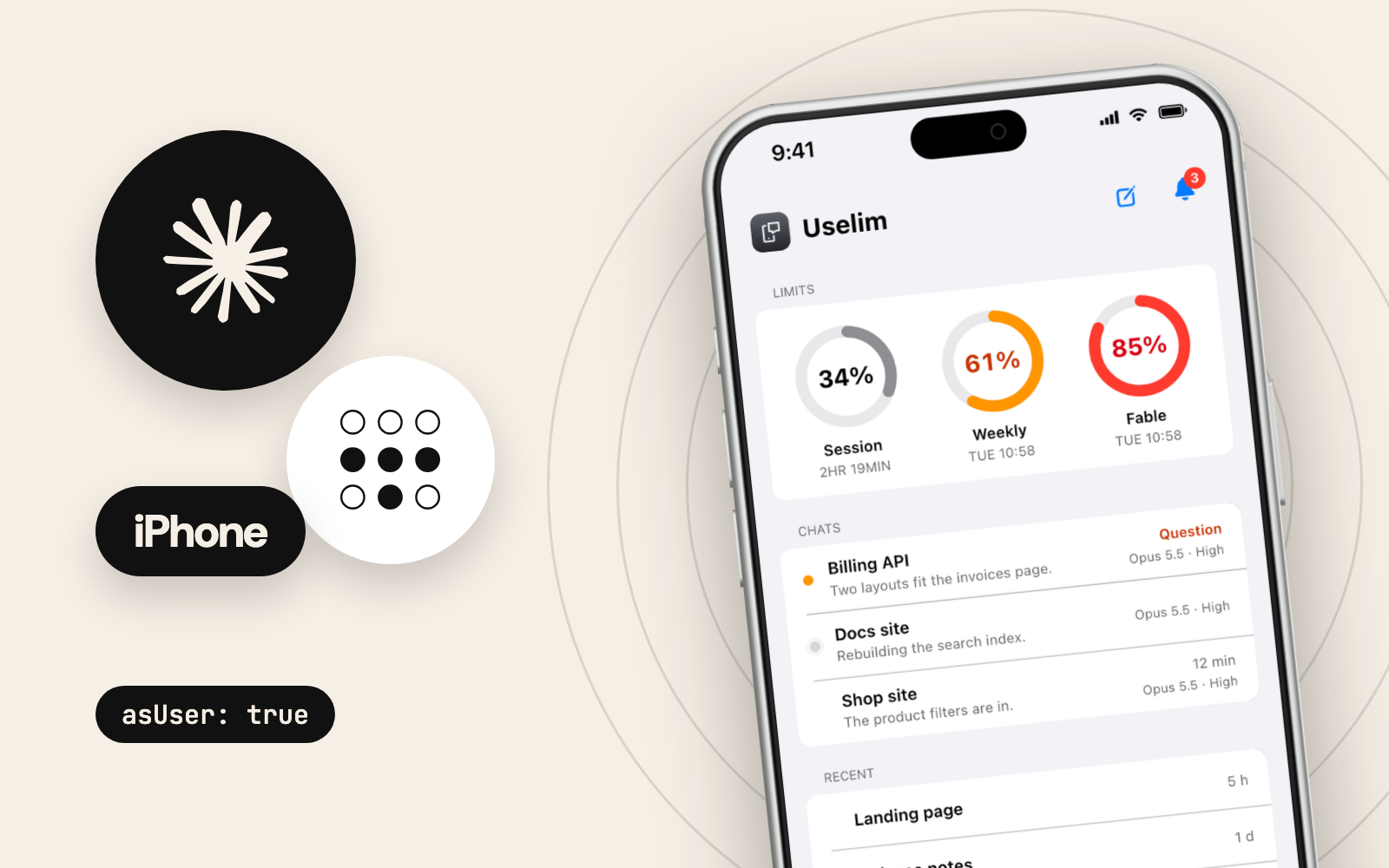
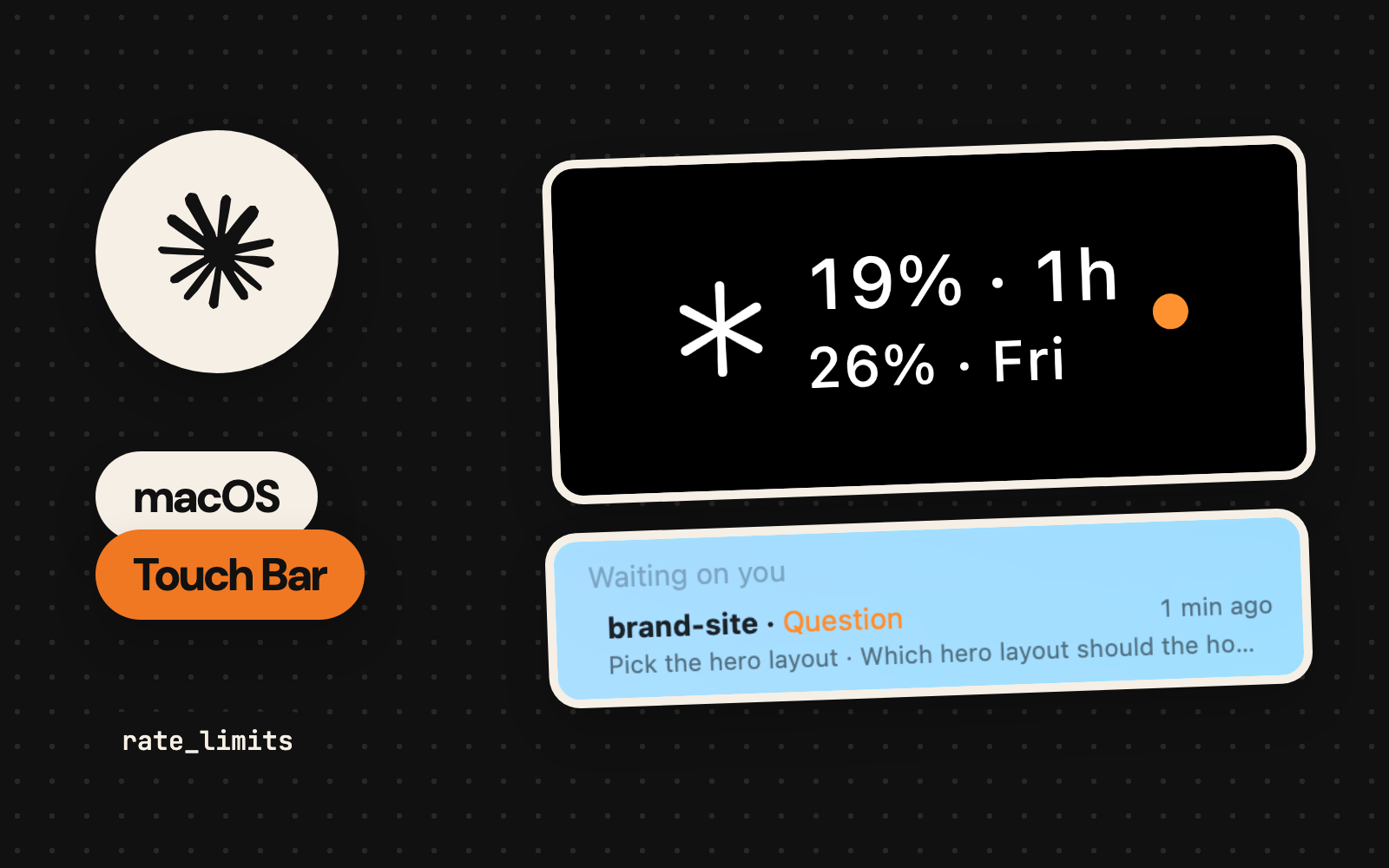
Claude Code's plan limits arrive as percentages with a reset time: a session limit over 5 hours, a weekly limit over 7 days and, for a model with a cap of its own, a weekly line for that model; the windows, the per-model caps and how they reset follow the subscription and Anthropic’s policies. The usage panel shows them a click away, and a long run of chats can reach a limit before anyone opens it. A menu bar item turns the panel into a glance. Uselim, a Claude Code usage tracker and rate limit monitor built as a Swift macOS menu bar application, does that, and it is the worked example for each technique below: where the figures come from, how a two-line readout is drawn, how thresholds and notices work, how hooks flag a chat that waits on an answer and how the same figures reach the Touch Bar.
Get the app: everything here ships in Uselim, free on GitHub. Culpmit installs it from its Claude limits switch, and How to Use Uselim walks through the setup.
The goal
- The session and the week side by side in the menu bar, each with its time left, inside the 22 points of height Uselim draws to.
- Orange from 60% and red from 80%, on the bar and in the menu.
- One notice at 60, 80 and 100% per window, and one when a limit that warned starts over.
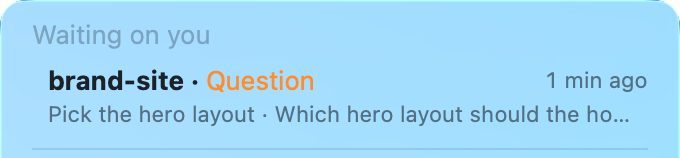
- An orange dot and a list at the top of the menu for every chat waiting on an answer.
- The same figures on the Touch Bar of a Mac that has one.
Where the figures come from: Claude Code's status line
The status line is a command configured in settings.json. Claude Code runs it when a session starts and after each new assistant message, batches rapid updates with a 300 ms debounce and passes one JSON document on stdin. Whatever the command prints becomes the status line.
{
  "statusLine": {
    "type": "command",
    "command": "/Applications/Uselim.app/Contents/MacOS/Uselim --statusline"
  }
}
For Pro, Max and Ultra subscribers the document carries a rate_limits object once the first API response of the session has arrived. Each window holds used_percentage, from 0 to 100, and resets_at, in Unix epoch seconds. Either window can be absent, and Claude Code drops a window after its resets_at passes, so a reader tolerates a missing one.
{
  "rate_limits": {
    "five_hour": { "used_percentage": 23.5, "resets_at": 1738425600 },
    "seven_day": { "used_percentage": 41.2, "resets_at": 1738857600 }
  }
}
A handler has three jobs: read stdin, keep the figures where the menu bar app can read them and print a short line for the status line itself. In Uselim the handler is the app's own binary, started with a flag.
import Foundation

let supportDir = NSHomeDirectory() + "/Library/Application Support/Uselim"

// The status line command: Claude Code passes one JSON document on stdin after each assistant message.
func runStatusLine() {
    let data = FileHandle.standardInput.readDataToEndOfFile()
    guard let json = try? JSONSerialization.jsonObject(with: data) as? [String: Any],
          let limits = json["rate_limits"] as? [String: Any] else {
        print("")
        return
    }
    var kept: [String: Any] = ["at": Date().timeIntervalSince1970]
    var words: [String] = []
    for (key, kind) in [("five_hour", "session"), ("seven_day", "weekly_all")] {
        guard let entry = limits[key] as? [String: Any],
              let used = (entry["used_percentage"] as? NSNumber)?.doubleValue else { continue }
        var figure: [String: Any] = ["percent": Int(used.rounded())]
        if let resets = (entry["resets_at"] as? NSNumber)?.doubleValue { figure["resets"] = resets }
        kept[kind] = figure
        words.append("\(Int(used.rounded()))%")
    }
    // keep the figures for the menu bar app, then print the line the status line shows
    try? FileManager.default.createDirectory(atPath: supportDir, withIntermediateDirectories: true)
    if let out = try? JSONSerialization.data(withJSONObject: kept) {
        try? out.write(to: URL(fileURLWithPath: supportDir + "/limits.json"), options: .atomic)
    }
    print(words.joined(separator: "   "))
}
The menu bar app watches the folder that holds that file and takes a push once it is newer than its last figures and under ten minutes old.
The status line belongs to the terminal interface, so pushes follow terminal sessions. Chats in the VS Code extension and the per-model weekly lines come from a second source beside the documented rate_limits fields, one that sits outside Claude Code’s documented interfaces and can change at any time. Uselim reads it at most once every five minutes, whatever asks for it, and holds off while the status line’s figures are fresh. After a refused read (HTTP 429) Uselim pauses reading a quarter of an hour, doubling up to an hour, its own choice of backoff, and the pacing carries over a restart. The two meet in one list: a push replaces the session and the week, the per-model lines stay from the last read, and the readout always shows the most recently retrieved figures.
Drawing a two-line readout in the menu bar
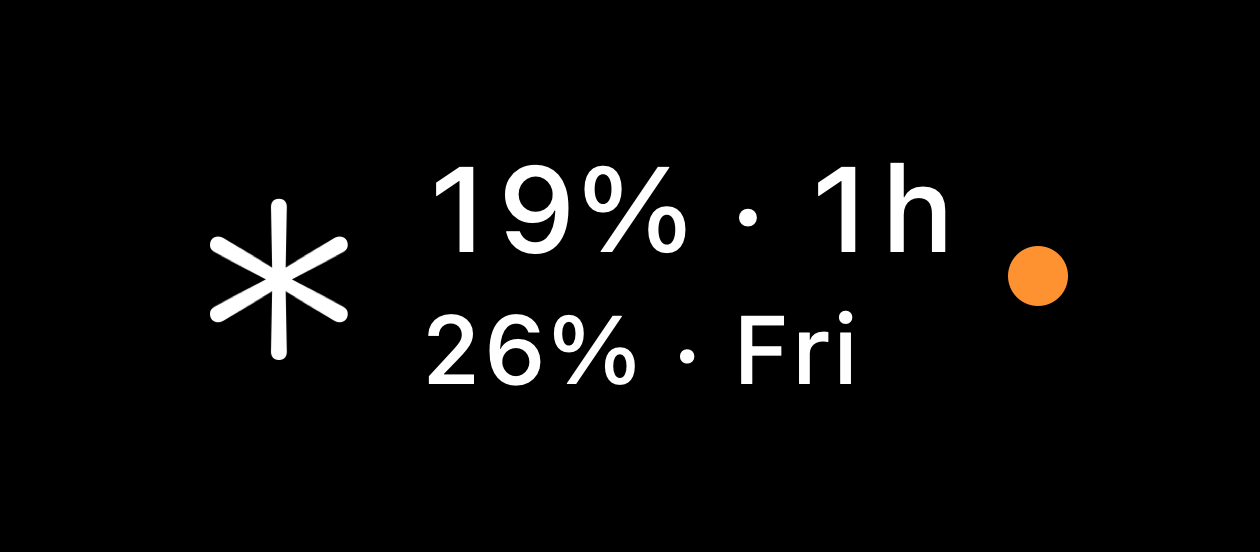
A status item (NSStatusItem) lives in the system status bar, and Uselim draws its readout 22 points tall to sit in it. Its button takes a title or an image. An image allows two font sizes, a colour per figure and exact placement, so the readout is drawn: an asterisk symbol on the left, the session line above the week line. Each line is a list of pieces, a text and a tone, so one figure can turn orange while its neighbours keep the bar's ink.
import AppKit

enum Tone { case normal, warning, critical }
struct Piece { let text: String; let tone: Tone }

// Two lines beside an asterisk, the session above and the week below, drawn into one 22-point image.
func barImage(top: [Piece], bottom: [Piece], dark: Bool) -> NSImage {
    let coloured = (top + bottom).contains { $0.tone != .normal }
    // a template image takes the bar's own colour; a coloured one needs its ink chosen by hand
    let base: NSColor = coloured ? (dark ? .white : .black) : .black
    func colour(_ tone: Tone) -> NSColor {
        switch tone {
        case .normal: return base
        case .warning: return .systemOrange
        case .critical: return .systemRed
        }
    }
    func line(_ pieces: [Piece], size: CGFloat) -> NSAttributedString {
        let s = NSMutableAttributedString()
        let font = NSFont.monospacedDigitSystemFont(ofSize: size, weight: .medium)
        for p in pieces {
            s.append(NSAttributedString(string: p.text, attributes: [.font: font, .foregroundColor: colour(p.tone)]))
        }
        return s
    }
    let t = line(top, size: 10)
    let b = line(bottom, size: 8)
    let icon = NSImage(systemSymbolName: "asterisk", accessibilityDescription: "Claude usage")?
        .withSymbolConfiguration(.init(pointSize: 13, weight: .regular))
    let iconW = icon.map { ceil($0.size.width) } ?? 0
    let textW = ceil(max(t.size().width, b.size().width))
    let h: CGFloat = 22
    let image = NSImage(size: NSSize(width: iconW + 4 + textW, height: h), flipped: false) { _ in
        if let icon {
            let box = NSRect(x: 0, y: (h - icon.size.height) / 2, width: icon.size.width, height: icon.size.height)
            icon.draw(in: box)
            if coloured {
                base.set()
                box.fill(using: .sourceAtop)
            }
        }
        t.draw(at: NSPoint(x: iconW + 4, y: h - t.size().height + 1))
        b.draw(at: NSPoint(x: iconW + 4, y: 0))
        return true
    }
    image.isTemplate = !coloured
    return image
}
While every figure is normal the image is a template: macOS recolours a template to suit the bar, so black pixels read white on a dark bar. Once a figure turns orange or red the image holds real colours, and the neutral ink follows the bar by hand. The app reads the appearance from the item's button, redraws when it changes and draws once more half a second after launch, since the item's slot settles a moment after the app starts.
final class Controller: NSObject, NSApplicationDelegate {
    let item = NSStatusBar.system.statusItem(withLength: NSStatusItem.variableLength)
    var appearanceWatch: NSKeyValueObservation?
    var top: [Piece] = []
    var bottom: [Piece] = []

    func applicationDidFinishLaunching(_ notification: Notification) {
        draw()
        // the item's slot in the bar arrives a moment after launch; draw again once it exists
        DispatchQueue.main.asyncAfter(deadline: .now() + 0.5) { [weak self] in self?.draw() }
        // and again whenever the appearance flips between light and dark
        appearanceWatch = NSApp.observe(\.effectiveAppearance) { [weak self] _, _ in self?.draw() }
    }

    func draw() {
        let dark = item.button?.effectiveAppearance.bestMatch(from: [.aqua, .darkAqua]) == .darkAqua
        item.button?.image = barImage(top: top, bottom: bottom, dark: dark)
    }
}
Thresholds and colours
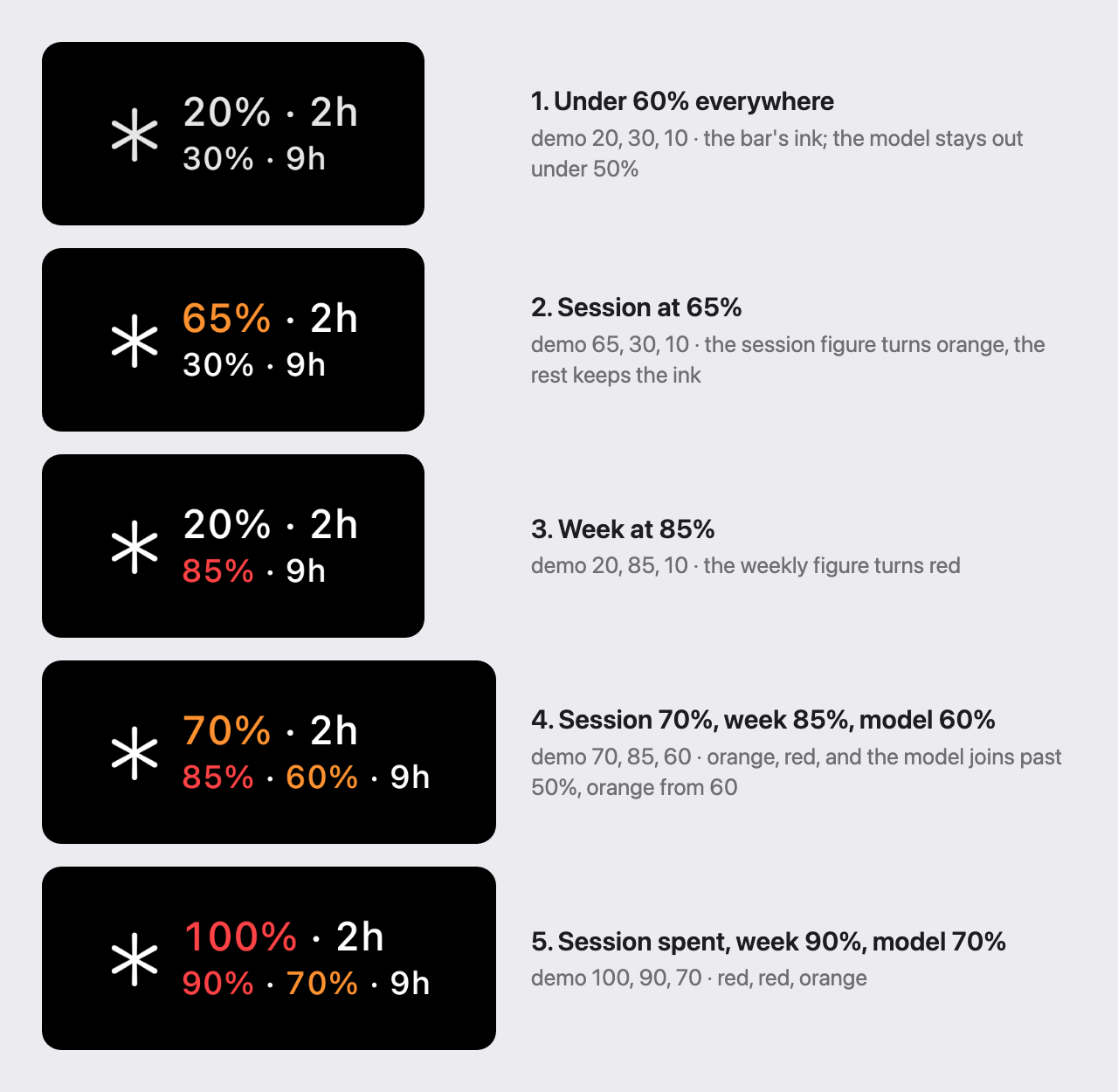
A limit is a kind, a name, a percentage, the panel's severity word and a reset date. The tone follows from the percentage, at thresholds Uselim sets: orange from 60%, red from 80%. A limit that the panel marks as anything other than normal turns orange at once, whatever its percentage. A model's own weekly figure joins the bar when it passes 50%, and the menu keeps a row for every model.
struct Limit {
    let kind: String      // "session", "weekly_all", or "weekly_scoped" for a model's own weekly cap
    let name: String      // "Session (5 hr)", "Weekly (7 days)", "Fable (weekly)"
    let percent: Int
    let severity: String  // the panel's word for how close the limit is; "normal" is the calm one
    let resets: Date?
}

func tone(of limit: Limit) -> Tone {
    if limit.percent >= 80 || ["critical", "exceeded", "locked"].contains(limit.severity) { return .critical }
    if limit.percent >= 60 || limit.severity != "normal" { return .warning }
    return .normal
}
The menu: rows, bars and a live countdown
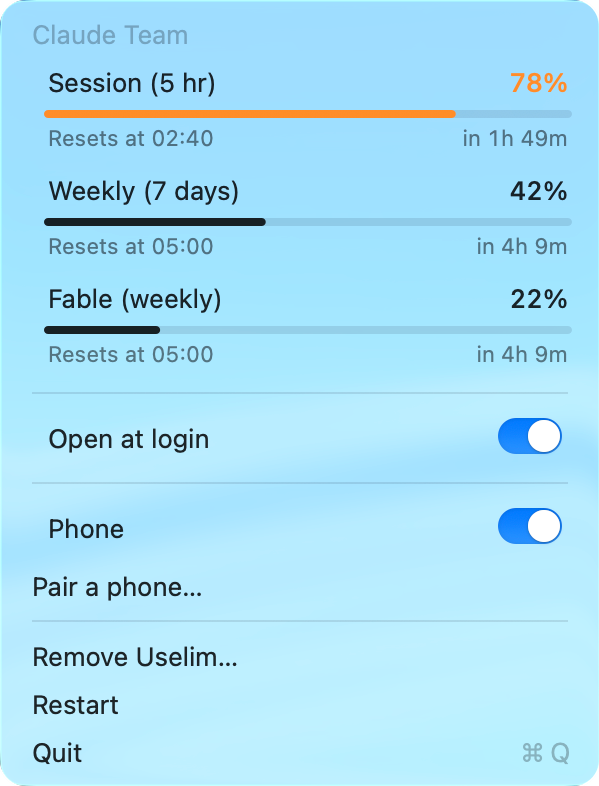
The menu holds a row per limit: the name, the percentage, a thin bar, the reset in the clock's own style (DateFormatter with timeStyle = .short) and the exact time left. A countdown needs a timer that keeps firing while the menu is open. Menu tracking runs the run loop in a mode of its own, so the timer joins the .common modes and stops when the menu closes.
func menuWillOpen(_ menu: NSMenu) {
    let t = Timer(timeInterval: 1, repeats: true) { [weak self] _ in self?.tickMenu() }
    // menu tracking runs the run loop in a mode of its own; .common includes it
    RunLoop.main.add(t, forMode: .common)
    tick = t
}

func menuDidClose(_ menu: NSMenu) {
    tick?.invalidate()
    tick = nil
}
Under the rows sit the signed-in account and a note line, which shows while the figures are stale or missing, with a reload at its right end that reads at once. Open at login and Touch Bar follow as switches: an NSSwitch on the menu item's own view, read back each time the menu opens; the Touch Bar row hides while Culpmit runs, as the Touch Bar section explains. Phone and Pair a phone… lead to the phone side in Episode 2, and an Update row shows while a newer release is out.
Notices at 60, 80 and 100%
Uselim’s own steps, 60, 80 and 100%, each fire one notice per window. A limit's window is its reset time, and a new reset time starts the steps over; a limit that had warned and then reset earns one notice that it is back. Figures carried over from the last run count as already announced, so a restart at 78% stays quiet. Delivery goes through UNUserNotificationCenter: request authorisation, then add a request with a nil trigger, which delivers at once. These are local notices on the Mac; the phone’s web push is a separate channel, covered in Episode 6.
import UserNotifications

final class Alerts {
    private var told: [String: Int] = [:]       // the last step announced per limit: 0, 60, 80 or 100
    private var windows: [String: Date] = [:]   // each limit's window, which is its reset time

    func check(_ limits: [Limit]) {
        for l in limits {
            let window = l.resets ?? .distantPast
            // a reset time a minute or more from the last one is a new window: the steps start over,
            // and a limit that had warned earns one notice that it is back
            if let known = windows[l.kind], abs(known.timeIntervalSince(window)) > 60 {
                if (told[l.kind] ?? 0) >= 60 { send("\(l.name) reset", "Back to \(l.percent)%") }
                told[l.kind] = 0
            }
            windows[l.kind] = window
            let step = l.percent >= 100 ? 100 : l.percent >= 80 ? 80 : l.percent >= 60 ? 60 : 0
            guard step > (told[l.kind] ?? 0) else { continue }
            told[l.kind] = step
            send(step == 100 ? "\(l.name) spent" : "\(l.name) at \(l.percent)%", nil)
        }
    }

    func send(_ title: String, _ body: String?) {
        let content = UNMutableNotificationContent()
        content.title = title
        if let body { content.body = body }
        content.sound = .default
        // a nil trigger delivers at once
        let request = UNNotificationRequest(identifier: UUID().uuidString, content: content, trigger: nil)
        let center = UNUserNotificationCenter.current()
        center.requestAuthorization(options: [.alert, .sound]) { allowed, error in
            guard allowed else {
                // macOS refuses Uselim's notices, an earlier Don't Allow or the switch in System Settings: the log names
                // why, and the menu offers the way back
                let why = error.map { error in
                    let found = error as NSError
                    return "\(found.domain) \(found.code), \(found.localizedDescription)"
                } ?? "refused"
                note("notice held back, macOS refuses notifications: \(why)")
                return
            }
            center.add(request)
        }
    }
}
The permission itself lives in System Settings. While macOS refuses the notices, through an answer in its permission prompt or the switch in System Settings, the log names why and the menu shows Turn on notifications…, which opens the Notifications pane with Uselim picked.
Knowing which chat is waiting: Claude Code hooks
Hooks run a command at points in a chat's life. They are declared in ~/.claude/settings.json as groups of an optional matcher and one or more handlers, each with its own timeout (600 seconds by default for a command). A handler receives the event as JSON on stdin: session_id, transcript_path, cwd and hook_event_name, plus the fields of the event itself.
Two events say a chat stopped for the person: PreToolUse on the AskUserQuestion tool, which is a question, and Notification with notification_type set to permission_prompt, which is a permission. Three events say it moved on: PostToolUse, after the question was answered or the tool ran, then UserPromptSubmit and SessionEnd.
{
  "hooks": {
    "PreToolUse": [
      { "matcher": "AskUserQuestion", "hooks": [{ "type": "command", "command": "/Applications/Uselim.app/Contents/MacOS/Uselim --hook", "timeout": 5 }] }
    ],
    "Notification": [
      { "matcher": "permission_prompt", "hooks": [{ "type": "command", "command": "/Applications/Uselim.app/Contents/MacOS/Uselim --hook", "timeout": 5 }] }
    ],
    "PostToolUse": [
      { "hooks": [{ "type": "command", "command": "/Applications/Uselim.app/Contents/MacOS/Uselim --hook", "timeout": 5 }] }
    ],
    "UserPromptSubmit": [
      { "hooks": [{ "type": "command", "command": "/Applications/Uselim.app/Contents/MacOS/Uselim --hook", "timeout": 5 }] }
    ],
    "SessionEnd": [
      { "hooks": [{ "type": "command", "command": "/Applications/Uselim.app/Contents/MacOS/Uselim --hook", "timeout": 5 }] }
    ]
  }
}
Uselim --setup copies ~/.claude/settings.json to a backup, writes these groups into it, and adds the status line or keeps the one already there; the rest of the file stays as it was.
The handler keeps one small file per chat in a folder, written when the chat stops for the person and removed when it moves on. A record holds the kind, the project folder and the matter.
import Foundation

let waitingDir = NSHomeDirectory() + "/Library/Application Support/Uselim/waiting"

// Takes one Claude Code event on stdin and keeps one file per chat that waits on the person.
func runHook() {
    let data = FileHandle.standardInput.readDataToEndOfFile()
    guard let json = try? JSONSerialization.jsonObject(with: data) as? [String: Any],
          let session = json["session_id"] as? String,
          let event = json["hook_event_name"] as? String else { return }
    let file = waitingDir + "/\(session).json"

    func write(_ kind: String, _ detail: String) {
        try? FileManager.default.createDirectory(atPath: waitingDir, withIntermediateDirectories: true)
        let record: [String: Any] = [
            "kind": kind,
            "project": ((json["cwd"] as? String ?? "") as NSString).lastPathComponent,
            "detail": detail,
            "at": Date().timeIntervalSince1970,
        ]
        if let out = try? JSONSerialization.data(withJSONObject: record) {
            FileManager.default.createFile(atPath: file, contents: out)
        }
    }

    switch event {
    case "PreToolUse":
        guard json["tool_name"] as? String == "AskUserQuestion" else { return }
        let questions = (json["tool_input"] as? [String: Any])?["questions"] as? [[String: Any]] ?? []
        let detail = questions.compactMap { $0["question"] as? String }.joined(separator: " · ")
        write("question", detail.isEmpty ? "A question" : detail)
    case "Notification":
        guard json["notification_type"] as? String == "permission_prompt" else { return }
        write("permission", json["message"] as? String ?? "A permission")
    default:
        // PostToolUse, UserPromptSubmit and SessionEnd: the chat moved on
        try? FileManager.default.removeItem(atPath: file)
    }
}
The app watches that folder with a DispatchSource file-system source. Any entry coming or going redraws the bar: an orange dot after the figures and a Waiting on you list at the top of the menu, one row per chat.
func watch(_ dir: String, _ changed: @escaping () -> Void) {
    try? FileManager.default.createDirectory(atPath: dir, withIntermediateDirectories: true)
    let fd = open(dir, O_EVTONLY)
    guard fd >= 0 else { return }
    let source = DispatchSource.makeFileSystemObjectSource(fileDescriptor: fd, eventMask: [.write, .delete, .rename], queue: .main)
    source.setEventHandler(handler: changed)
    source.setCancelHandler { close(fd) }
    source.resume()
    watchers.append(source)
}
The same figures on the Touch Bar
On a Mac with a Touch Bar, a Control Strip sits on the right. A third-party item joins it through the system tray calls on NSTouchBarItem, and a tap can present a full-width bar for the detail. macOS keeps those calls private (DFRFoundation), so each one is looked up at run time and used where it exists. Colours on that bar are fixed white with alpha: a dynamic colour resolves with the app's appearance, which suits the menu bar and misses on the black bar.
import AppKit

private let trayID = NSTouchBarItem.Identifier("com.simonbooban.uselim.tray")

final class Strip {
    private let dfr = dlopen("/System/Library/PrivateFrameworks/DFRFoundation.framework/DFRFoundation", RTLD_LAZY)
    private let addTray = Selector(("addSystemTrayItem:"))
    private let present = Selector(("presentSystemModalTouchBar:systemTrayItemIdentifier:"))

    // each private call is looked up first and used only where it exists
    var available: Bool {
        dfr != nil && dlsym(dfr, "DFRElementSetControlStripPresenceForIdentifier") != nil
            && (NSTouchBarItem.self as AnyObject).responds(to: addTray)
            && (NSTouchBar.self as AnyObject).responds(to: present)
    }

    // the item sits in the Control Strip while its presence is on
    private func setPresence(_ on: Bool) {
        guard let dfr, let f = dlsym(dfr, "DFRElementSetControlStripPresenceForIdentifier") else { return }
        typealias Presence = @convention(c) (CFString, Bool) -> Void
        unsafeBitCast(f, to: Presence.self)(trayID.rawValue as CFString, on)
    }

    func show(_ item: NSCustomTouchBarItem) {
        guard available else { return }
        _ = (NSTouchBarItem.self as AnyObject).perform(addTray, with: item)
        setPresence(true)
    }

    // a tap presents the detail bar across the whole strip
    func open(_ bar: NSTouchBar) {
        _ = (NSTouchBar.self as AnyObject).perform(present, with: bar, with: trayID.rawValue)
    }
}
A Control Strip presence outlives its process. The app releases the item's identifier when it quits (applicationWillTerminate); a copy that quit with its item still on kept the slot as a ghost until a script cleared the identifier. The Touch Bar switch in the menu puts the item in the Control Strip and takes it out. The Control Strip holds one third-party item, so while Culpmit runs, its chip takes the slot, with Claude's figures once its Claude limits switch is on, and Uselim's Touch Bar row hides until Culpmit closes.


Open at login
SMAppService registers the app as a login item from macOS 13. Registering from the installed copy, in /Applications or a standard account's own ~/Applications, keeps the entry pointing at one place, and the menu shows the registration as a switch.
import ServiceManagement

var openAtLogin: Bool {
    get { SMAppService.mainApp.status == .enabled }
    set {
        do {
            if newValue { try SMAppService.mainApp.register() } else { try SMAppService.mainApp.unregister() }
        } catch {
            print("open at login: \(error.localizedDescription)")
        }
    }
}
Things to know
- The last figures live on disk and draw at once on launch, grey after ten minutes. A restart then shows figures in place of placeholders, and the five minutes between reads hold across it.
- One refused read keeps fresh figures as they are. Only age turns the readout grey.
- A status line test needs real figures: stand-in figures with made-up reset times take over from a real read and show in the bar as the truth.
Sources: Claude Code's status line and hooks references; Apple's documentation for NSStatusItem, SMAppService and UNUserNotificationCenter.
- ClaudeClaude Code
- SwiftSwift and AppKit
- Published
- Author
- Simon Booban
- Category
- AI & Automation