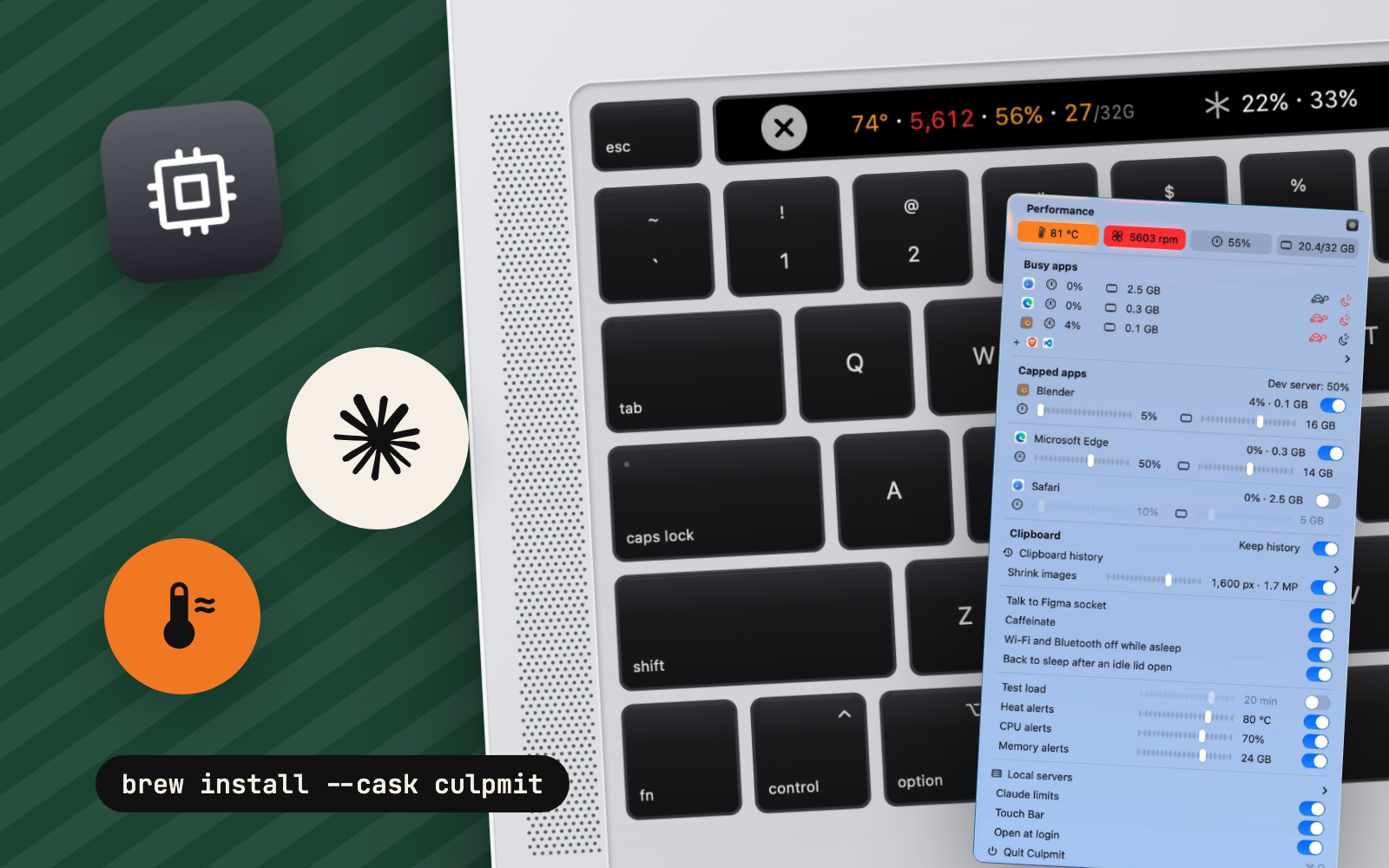
Culpmit, the menu bar app for Intel Macs that run hot
Culpmit is a macOS menu bar utility for Intel MacBooks that overheat: a thermal monitor and CPU limiter in one. It puts the CPU temperature over the faster fan's speed in the menu bar, helps identify the CPU-intensive apps behind the heat, and provides controls that can hold an app to a share of the processor, which may reduce processor workload and heat generation while the work carries on. Around that core it keeps a clipboard history, shrinks screenshots for chats, guards sleep, watches memory and fills the Touch Bar with live figures. This guide walks through each part, from the install to removal.
Install Culpmit
Four ways lead to the same app in Applications. A download and Homebrew bring one confirmation from macOS on the first open, since Culpmit comes from GitHub, outside the App Store, signed with its own certificate rather than an Apple Developer ID: open System Settings, Privacy & Security, and click Open Anyway. The script and npx open it straight away.
| Way | How |
|---|---|
| Download | The .dmg from the latest release, then drag Culpmit onto Applications |
| curl | One line in Terminal, below |
| Homebrew | A tap, then the cask, below |
| npx | One line with Node installed, below |
The .dmg sits on the latest release page. The other three ways run in Terminal:
# curl
curl -fsSL https://raw.githubusercontent.com/booban1/culpmit/main/install.sh | bash

# Homebrew
brew tap booban1/culpmit https://github.com/booban1/culpmit
brew install --cask culpmit

# npx
npx github:booban1/culpmit
The first run
- Culpmit opens at login and comes back on its own after a crash. macOS lists it under Login Items as allowed in the background; Open at login in the menu changes both.
- Allow notifications when macOS asks, for the alerts and for updates.
- The first time Culpmit turns Bluetooth off for sleep, macOS asks for Bluetooth access.
- Those are the three questions Culpmit asks. It reads the sensors, the fans and the process list with the access every app has.
Read the readout and the Performance boxes
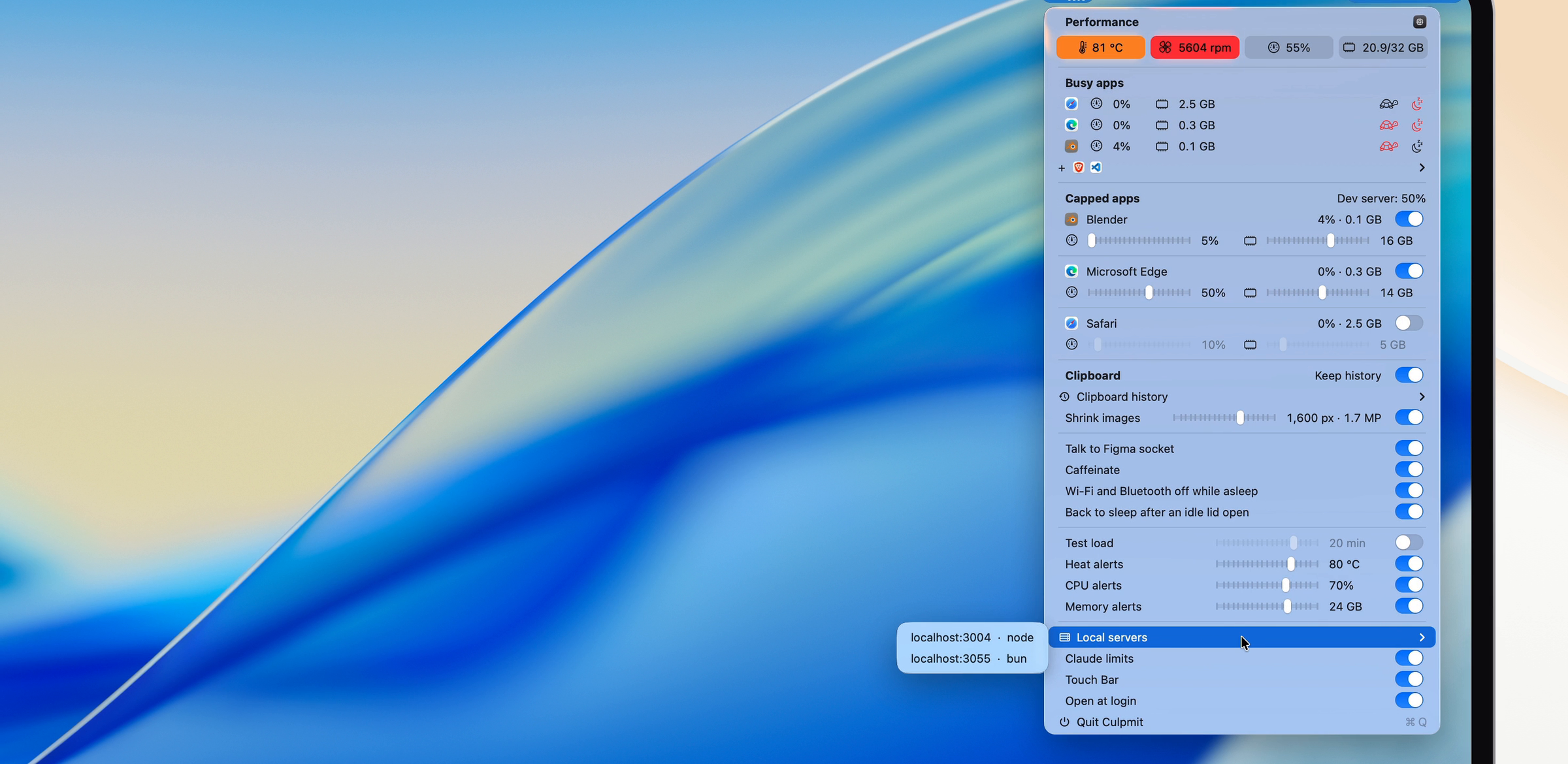
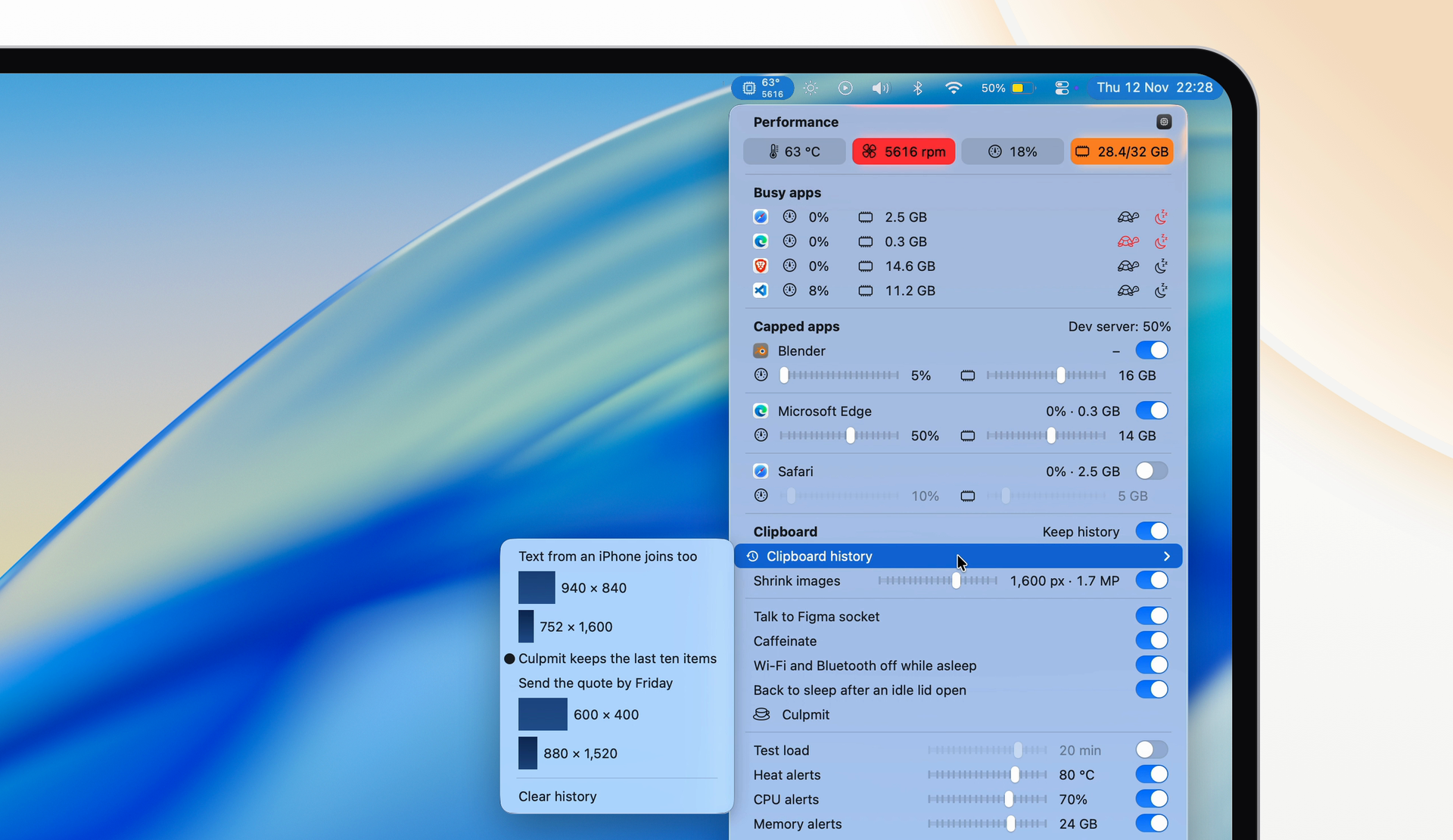
The menu bar shows the CPU temperature over the faster fan's speed, live every second. The menu opens on four boxes: temperature, the faster fan, CPU load and memory used, written as 27.3/32 GB. A box turns orange at its alert's line and red at 90%, or 90 °C for the temperature. The fan turns orange with the temperature and red past 90% of its top speed, and memory also follows macOS's own memory pressure. Hover over memory to see swap. The boxes measure different things: the temperature is one hardware sensor reading, from the CPU sensor Culpmit finds in the Mac's System Management Controller (the CPU proximity or die sensor on most Intel Macs, else the hottest core sensor), rather than one universal CPU temperature; the fan box is the faster fan's measured speed; CPU load is the share of processor time in use across every core; and memory is the RAM in use. Thermal throttling, where macOS lowers the processor's speed to hold its heat, sits outside these figures. Culpmit reads the fans and leaves their control to macOS, or to an app such as Macs Fan Control.
Cap or idle the app heating the Mac
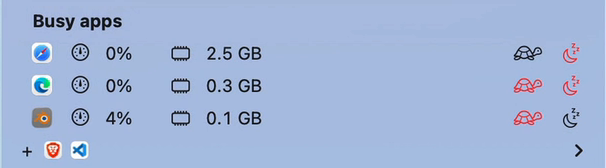
Busy apps lists every app using half a core or more, plus the three holding the most memory, each once with its CPU share and memory. Up to four show as rows; with five or more, three rows and a + row with the rest. Each row carries two buttons, red while on:
- Cap, the tortoise, sets a ceiling at half of what the app uses at that moment, so one click slows it.
- Idle, the moon, holds the app to a tenth of one core, so it keeps running cool until you wake it.
Both work like cpulimit: Culpmit pauses and resumes the app's processes in tenth-of-a-second slots, so the app gets its share of processor time. The processor's clock speed and Apple's own thermal management stay as they are. A capped or idled app responds more slowly, its background work, such as downloads, syncs or renders, slows with it, and some of its network connections can time out while it is held.
Hold capped apps to a share of the Mac
Every app you cap moves to Capped apps, together with every process it starts. Each one has two lines:
- A CPU share from 5% to 80% of the whole Mac.
- A memory line. Past it, while memory is short, the app idles so macOS can compress its memory, and it wakes when you switch to it or memory eases. The app in front stays live.
A switch beside each app lets it run free. Hold Option while opening the menu to add or remove apps. The dev server switch caps a next dev run.
Alerts for heat, CPU and memory
Each alert waits a minute past its line before it speaks, and names the app to act on, with Cap and Idle in the notification.
| Alert | Line | Names |
|---|---|---|
| Heat | 50 to 90 °C, 85 to start | The busiest app, with Cap and Idle |
| CPU | 25 to 90% of the Mac, 80 to start | The busiest app, with Cap and Idle |
| Memory | 25 to 95% of memory in 5% steps, shown in GB, 90% to start (29 GB on a 32 GB Mac), or steady swapping | The heaviest app, with Idle |
| Red | Any figure at 90% for a minute | One more alert while its switch is on |
Local models first
While a llama.cpp, Ollama or OpenCode process works, Culpmit holds every other busy app back, aiming to leave the Mac's heat budget to the model. The model, shells, terminal apps and Culpmit itself run free, and VS Code keeps one core for its terminal and chats. Two minutes after the model goes quiet, every app returns to where it stood. This runs on its own, with zero setup. The local AI series runs models on such a Mac: Episode 5 benchmarks Qwen on its Radeon, and Episode 10 tests five models side by side.
Clipboard history and Shrink images
- Keep history holds the last ten items, text and images, in memory, the current one first. Picking an older item marks it with a dot, and a new copy clears the dot. Text copied on an iPhone, iPad or another Mac joins the list.
- Shrink images fits each screenshot on the clipboard to a long side you choose, from 800 to 2,000 px, so it pastes light into chats and documents. Smaller crops pass as they are.
Sleep, Caffeinate and the Figma socket
- Caffeinate keeps the Mac awake on demand and lets go on battery below 20%.
- Wi-Fi and Bluetooth off while asleep, back on as the Mac wakes.
- Back to sleep after an idle lid open, on a laptop that wakes in a bag.
- Kept awake by, a cup and saucer with its name on hover, lists the apps holding the Mac awake and shows while something does; with Caffeinate on, it reads Culpmit.
- Talk to Figma socket starts the socket on port 3055 for the Talk to Figma plugin; it needs bun.
Test load: watch every feature at work
Test load starts seven small test apps for one to thirty minutes. Six keep every core busy and the seventh fills memory until it runs short, so Busy apps fills, the heat and memory alerts arrive and the memory line idles the seventh; on a Touch Bar Mac, the strip lights up too. Try Cap and Idle on them. The switches return to where they were when the test ends.
The menu's foot
- Local servers › lists every local server listening on the Mac, each one click from the browser.
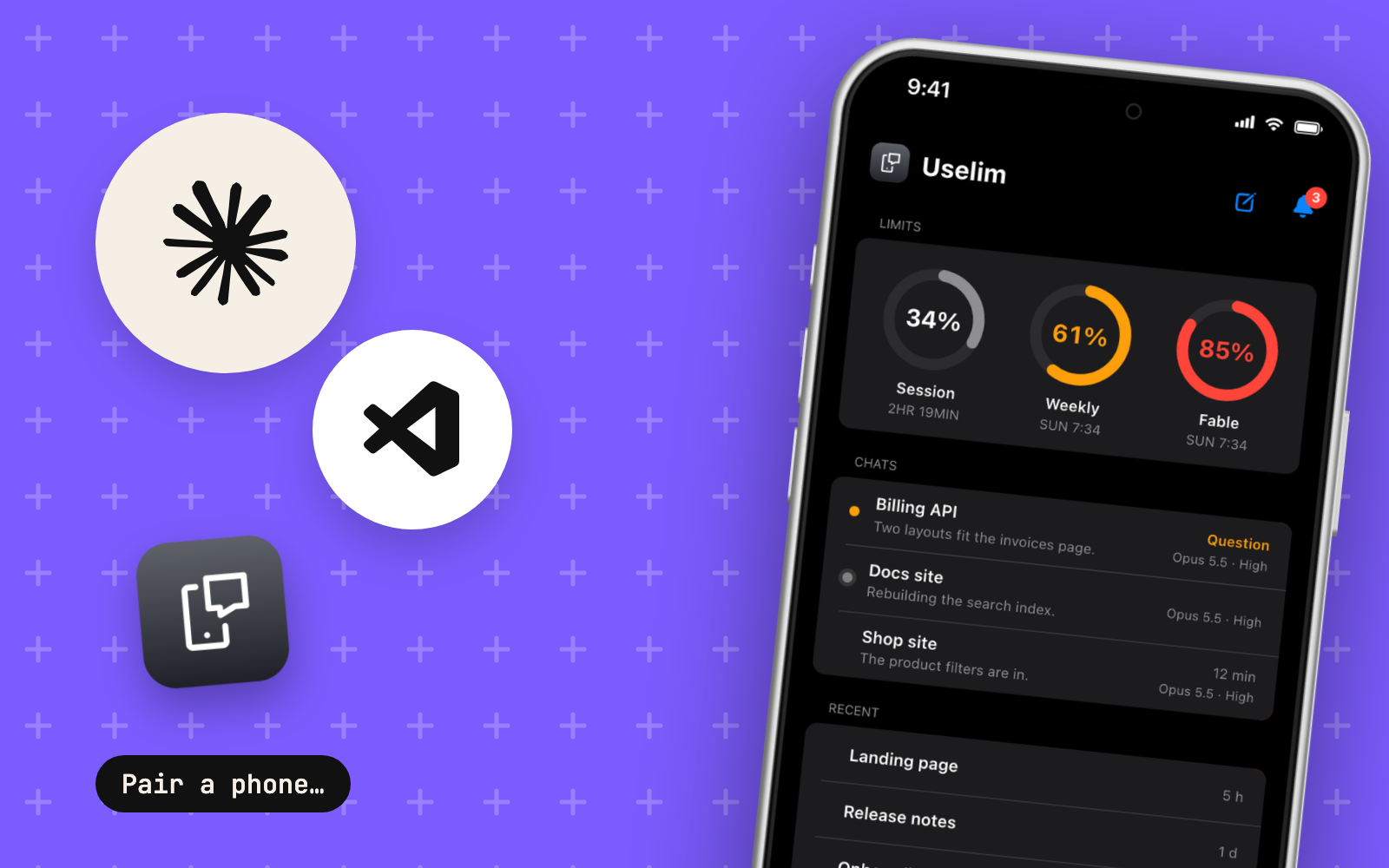
- Claude limits installs Uselim, in its own section below.
- Touch Bar shows on Macs with a Touch Bar.
- Open at login.
- Update shows while a newer release exists. On a standard user's account, which macOS keeps out of /Applications, it reads Updating Culpmit in /Applications needs an administrator account.
- Quit.
The Touch Bar strip
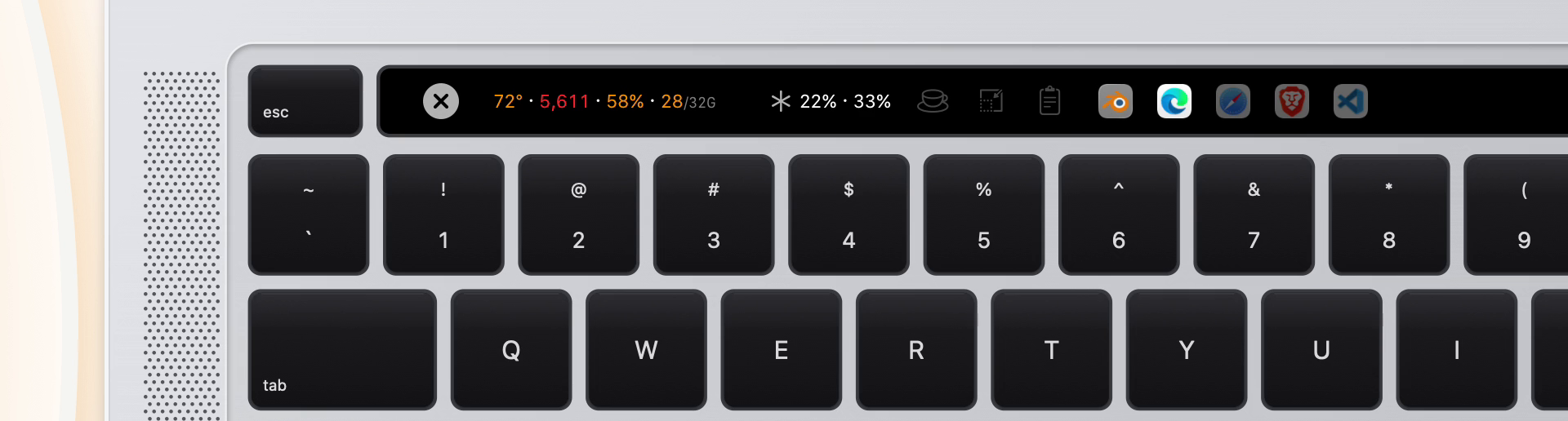
On a MacBook Pro with a Touch Bar, Culpmit fills the strip: the readout with memory last, the switches, the clipboard, and one row of apps, capped and idled ones lit, busy uncapped ones dim, each group a swipe away.
- Tap an item for its action: a switch flips, a clip copies, an app is capped or freed.
- Hold an item for its details: the readout with units, a switch with On and Off, a clip's first line or a larger image, an app's use beside its CPU cap and memory line. VoiceOver reaches each item's details too.
- Control Option Command C opens the strip from anywhere.
Culpmit reads the Mac's hardware for the strip, so the strip, its menu row, its key and Test load's Touch Bar line appear on Touch Bar Macs alone.
Claude's usage limits on the Touch Bar, with Uselim
For Claude Code users, the Claude limits switch in the menu's foot, right above Touch Bar, installs Uselim, the Claude Code usage-limit monitor, in the background, with zero windows of its own. Off, the line under it reads Installs Uselim and adds its hooks to Claude Code. On, Culpmit downloads the latest release, checks its checksum and its exact signing certificate, puts it in Applications and runs its setup, and the line names each step:
- Downloading Uselim…
- Checking Uselim's signature…
- Setting up Uselim…
- Adding Uselim's hooks…
- Adding Uselim's plugin…
- Starting Uselim…
- Uselim 1.1.0 running (the line names the version installed)
The whole install took about four seconds in the runs measured. A Mac with Uselim already installed skips the download and runs the setup alone. On a standard user's account, which macOS keeps out of /Applications, Uselim lands in ~/Applications. Once Uselim has run an hour, the row is the switch alone, with a line back only while something installs or stops.
A failed step leaves the Mac as it was: the switch returns to off and the line turns orange, naming where it stopped. Switch it on to try again.
| Line | What happened |
|---|---|
| Stopped at the download | The release is out of reach |
| Stopped at the signature check | A checksum or certificate differs |
| Stopped at both Applications folders | Both folders refuse the copy |
| Stopped at setup | Uselim's setup reports a failure |
| Needs Claude Code | Uselim is in, and Claude Code is missing on the Mac |
Once Uselim runs, the strip shows the Claude session and week after Culpmit's own figures, orange from 60% and red from 80%, with an orange dot while a Claude chat waits for an answer. A tap or a hold opens every limit with its reset and time left. Turning the switch off takes Claude off the strip and keeps Uselim installed, with its own menu bar readout. How to use Uselim covers the rest: what its setup changes, the menu bar readout, the notices, the phone app and the few questions macOS and VS Code ask along the way.

Privacy
- Clipboard history lives in memory alone, ten items at most, and clears when Keep history goes off or Culpmit quits. Copies a password manager marks as concealed or transient stay out of it; any other sensitive text copied stays in the list until newer copies push it out, so Keep history off suits work with passwords and keys.
- Two network calls, both to GitHub releases: the update check, and Uselim's download while Claude limits is on.
- Settings live in
~/Library/Preferences/com.simonbooban.culpmit.plistand the log in~/Library/Logs/Culpmit.log.
Remove Culpmit
Switch Open at login off in the menu, quit Culpmit and move it from Applications to the Trash. With Homebrew, one command does all three:
brew uninstall --cask culpmitUselim stays installed after Culpmit leaves, since it runs as an app of its own; How to use Uselim shows how to remove it.
The source, the releases and the licence live on GitHub. Culpmit comes from the same workshop that builds websites and apps, and hot Macs in an office are part of IT support and maintenance. For the menu bar readout of Claude's limits and your chats on the phone, read How to use Uselim.
- Published
- Author
- Simon Booban
- Category
- Websites & Apps